What’s new in NemoStudio Version 24.0.0.3
Below are the recent changes in NemoStudio web, desktop and its modules.
New look and feel of the login page
NemoStudio login page interface has a new look and feel. These changes are shown in NemoStudio web and NemoStudio desktop.

New home page appearance
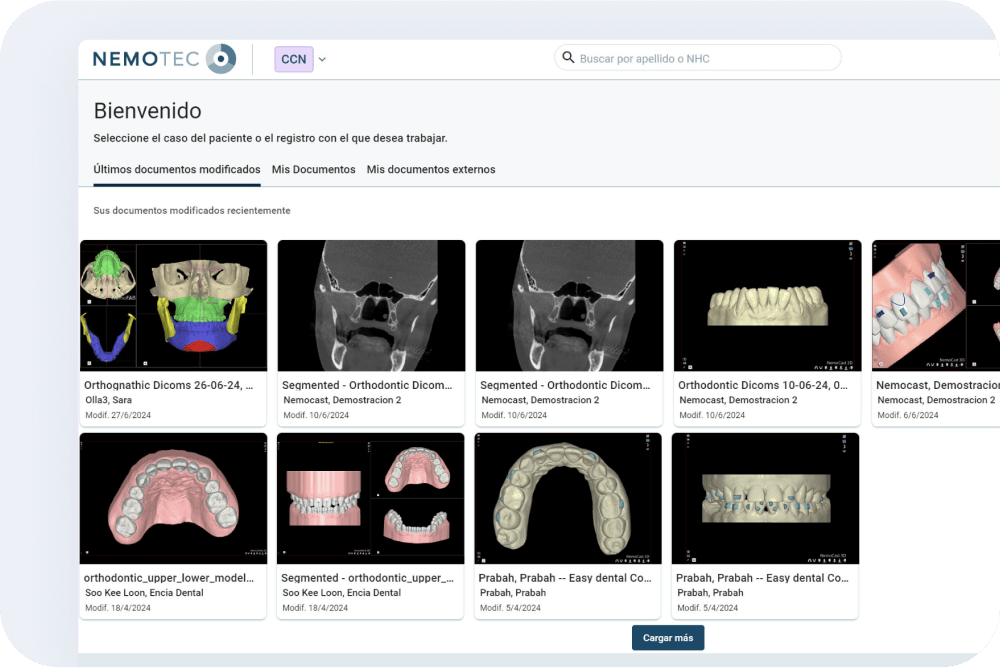
When accessing NemoStudio, the home page shows the last modified documents in chronological order (these files may belong to different patients).
The toolbar and the way to access the menus have been changed.
Top toolbar
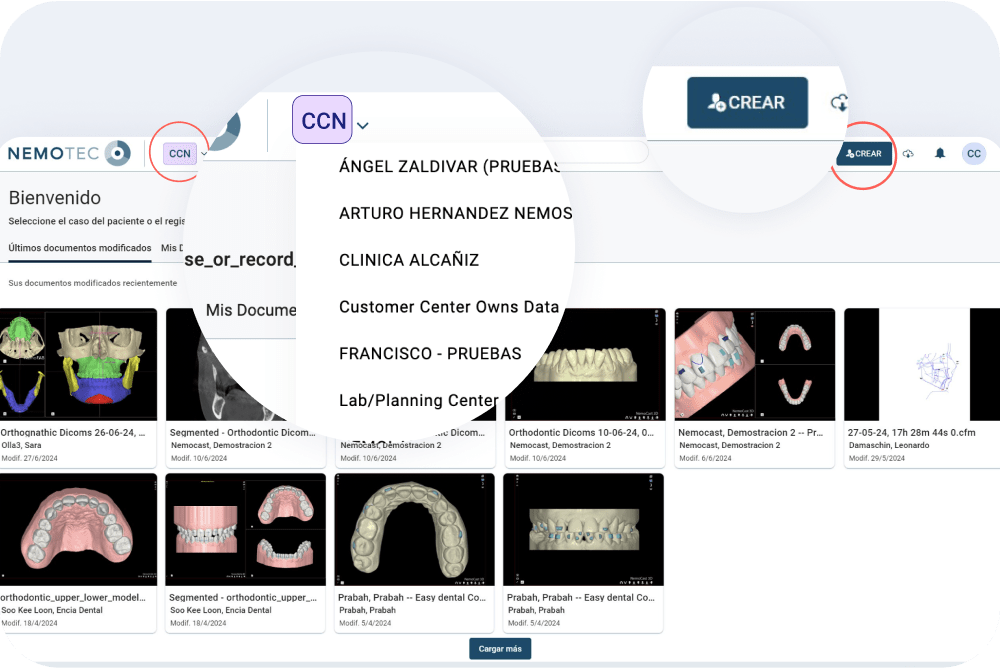
The option to change the center without logging out has been added. To do so, a purple button has been added in the upper left corner with the initials of the center to which you are logged in. Pressing it displays a menu with the centers where the user is currently a member.
The button to create a patient has been moved to the right and has changed its appearance.
User menu
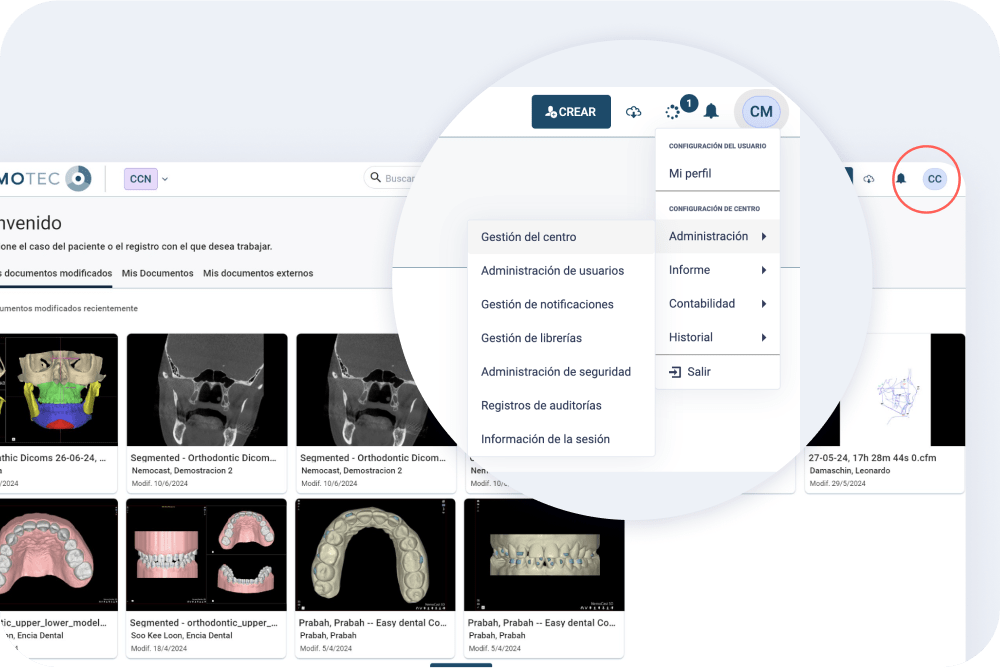
New location to access the center’s settings by clicking on the button in the upper right corner containing the user’s initials. In this drop-down menu you can also access your profile, your own documents, external (shared) documents and recently edited documents.
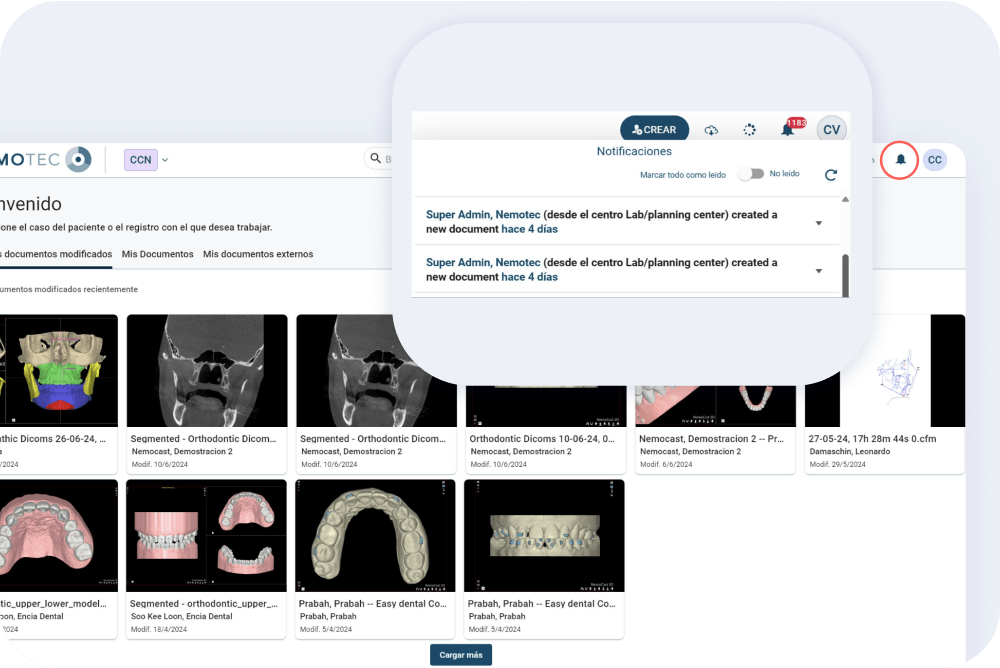
Notifications panel
Notifications have been added when creating or editing documents and patients, and when importing documents.
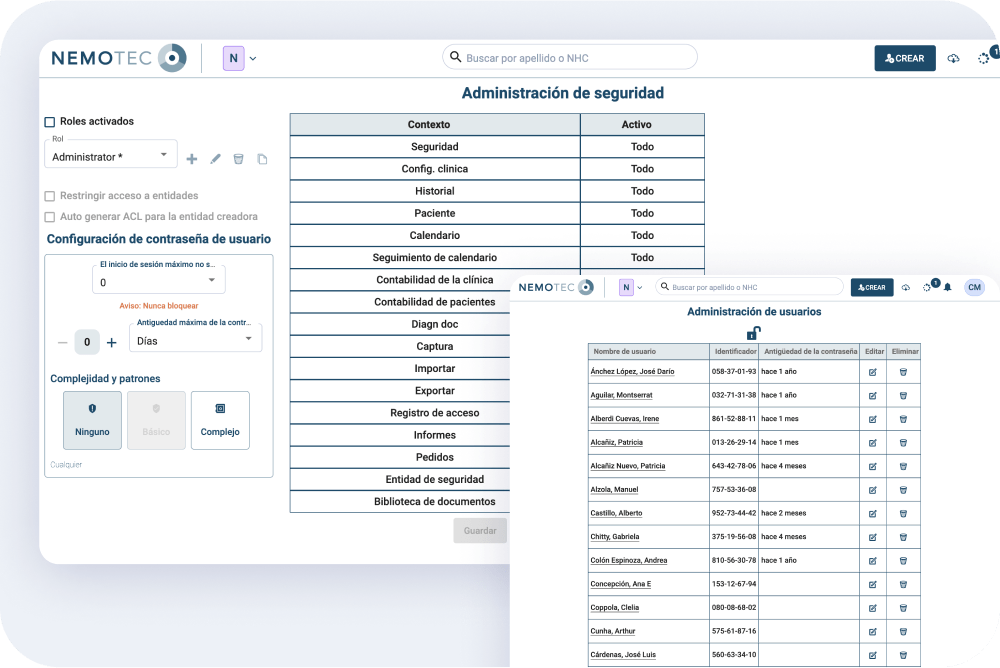
Roles and permissions for users of the center
Roles and permissions have been implemented for site users. To change or assign roles go to the center settings and select the “management” – “user management” section.
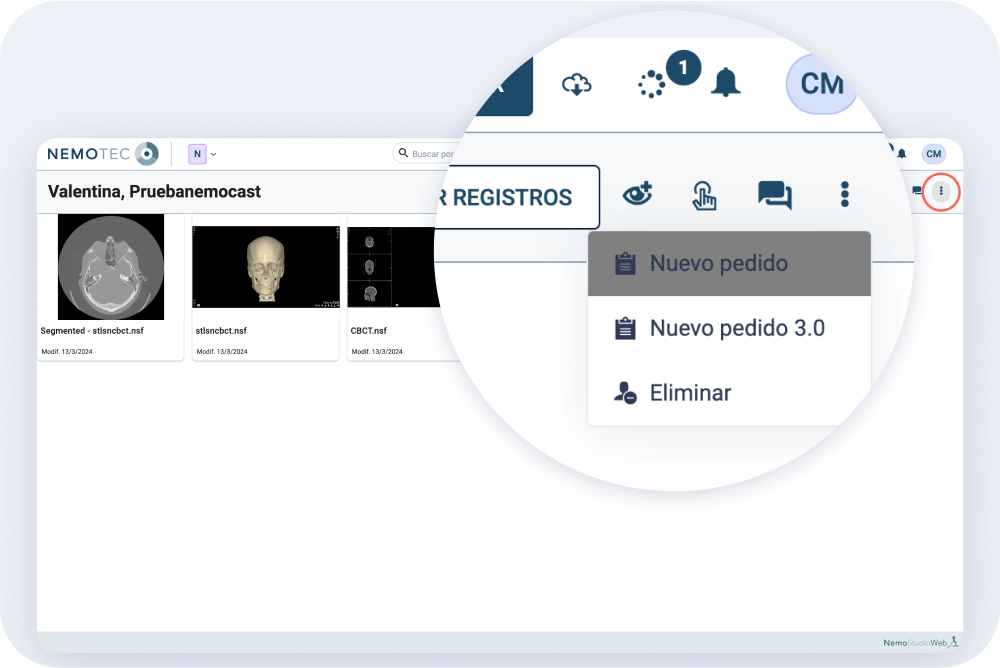
Patient page
The patient page has been redesigned and new functions were added.
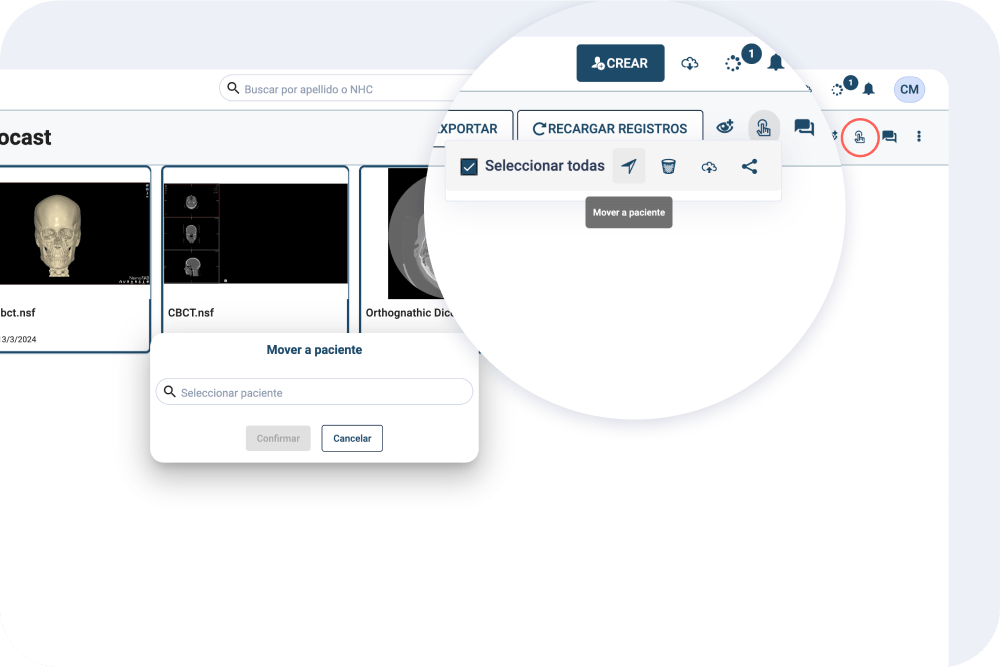
Patient documents
You can now move documents from one patient to another and/or export them.
Document privacy
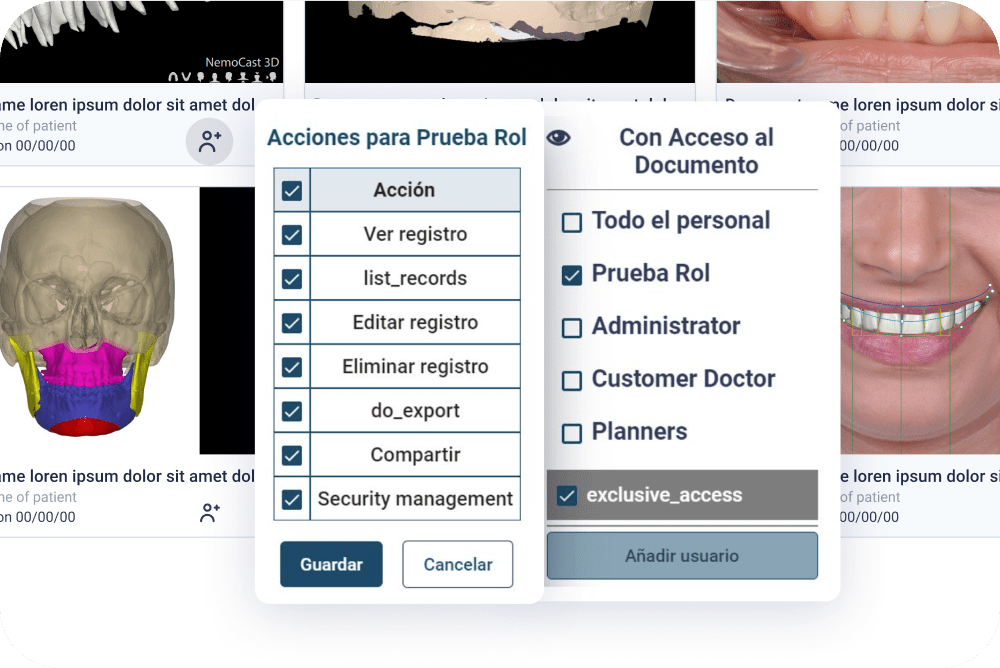
Regarding documents privacy and security, access restrictions have been added for each document. These restrictions can be applied to a single document, a set of documents or an entire patient. The activation of this functionality must be done in the center’s security preferences.
Chat between users
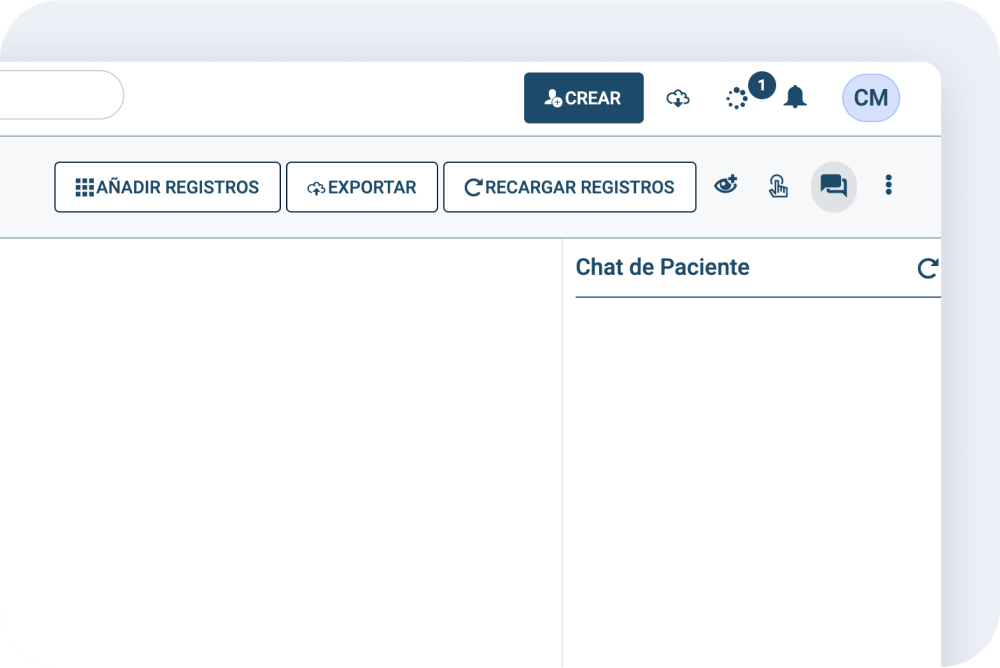
You can now chat to communicate with other users within the same patient.
New user interface look and feel
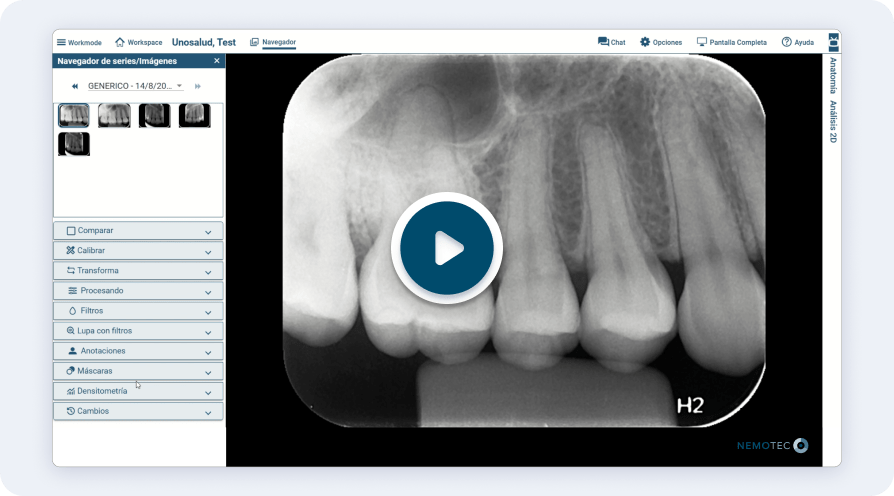
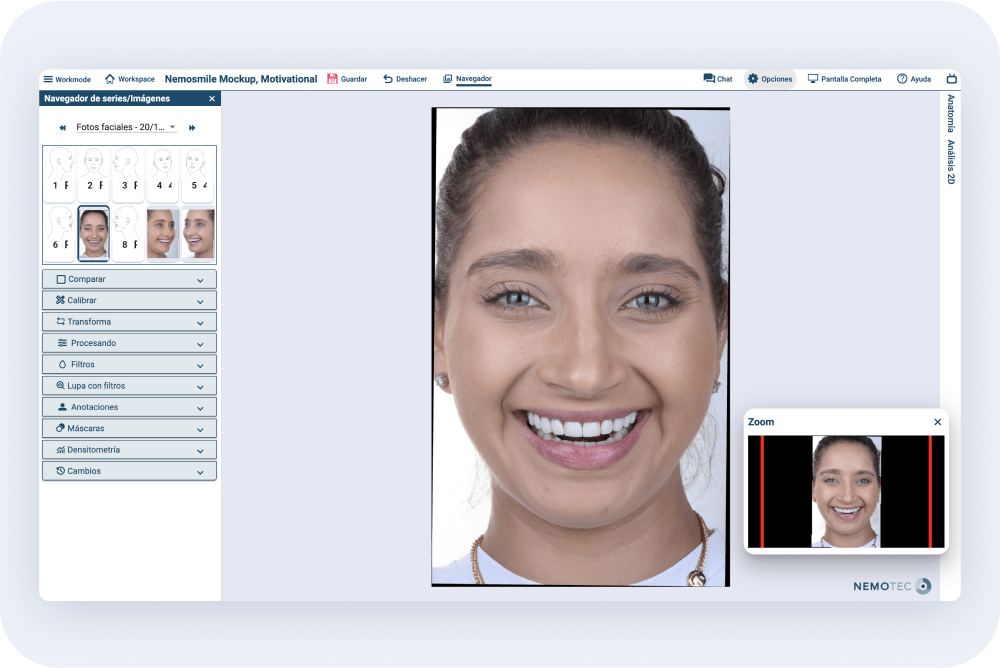
The 2D document editor now has a more intuitive interface.
Toolbar
The toolbar has been redesigned, adding new options and relocating others. From the
toolbar you can:
- Change the working mode.
- Switch to another image in the series.
- Open the chat.
- Access to settings.
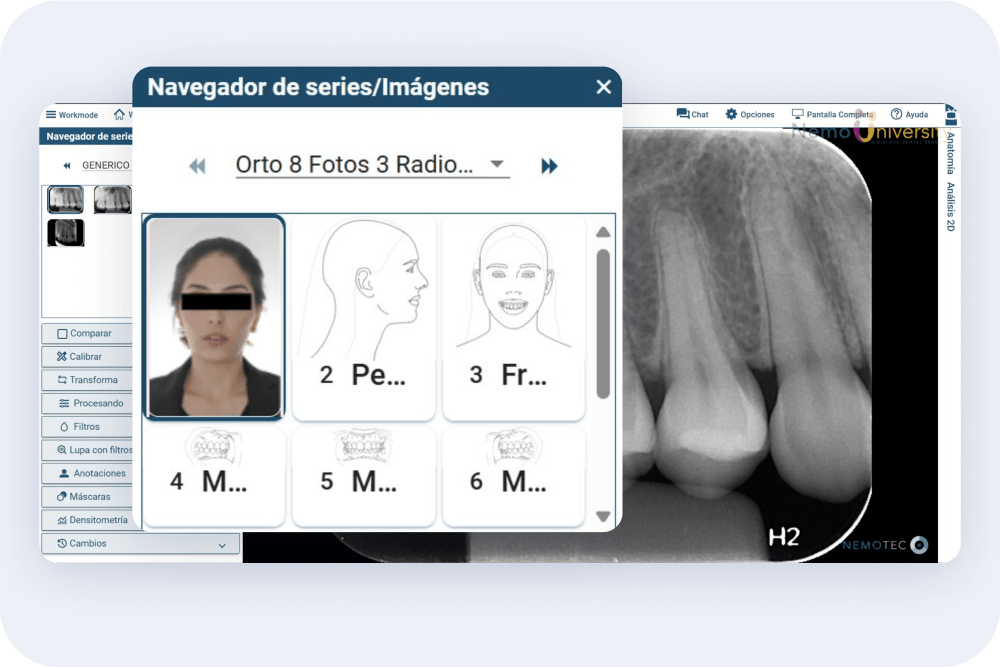
Select image or series of images
A drop-down menu has been implemented to select the patient series and choose which image to display.
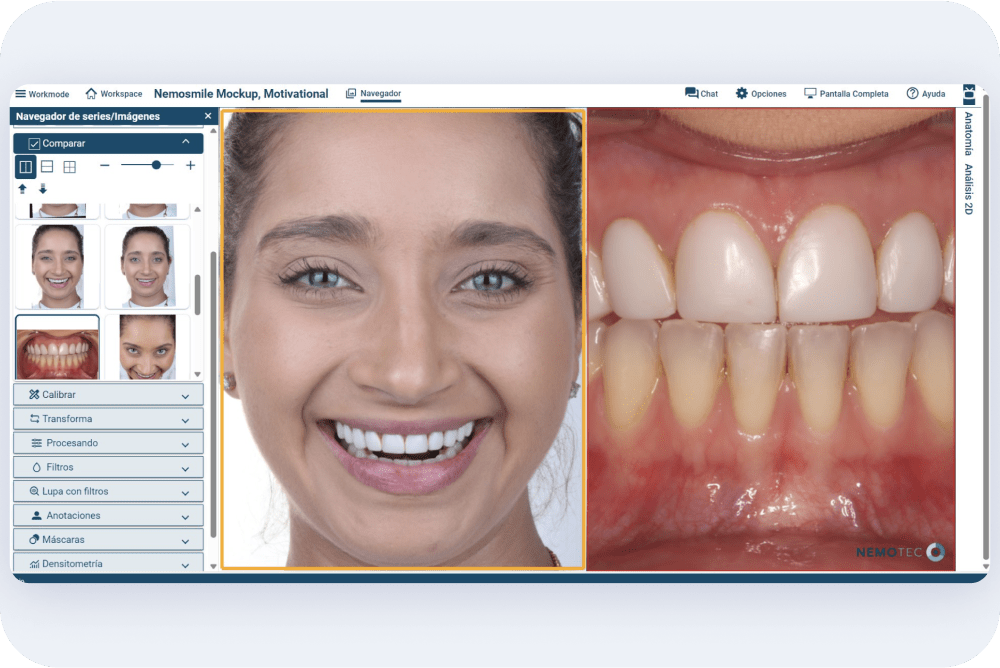
Compare images
The option “Compare” to view two or four images at the same time.
Calibrate images
Calibrate images and implement guidelines. Once the image is calibrated, angles and distances can be measured.
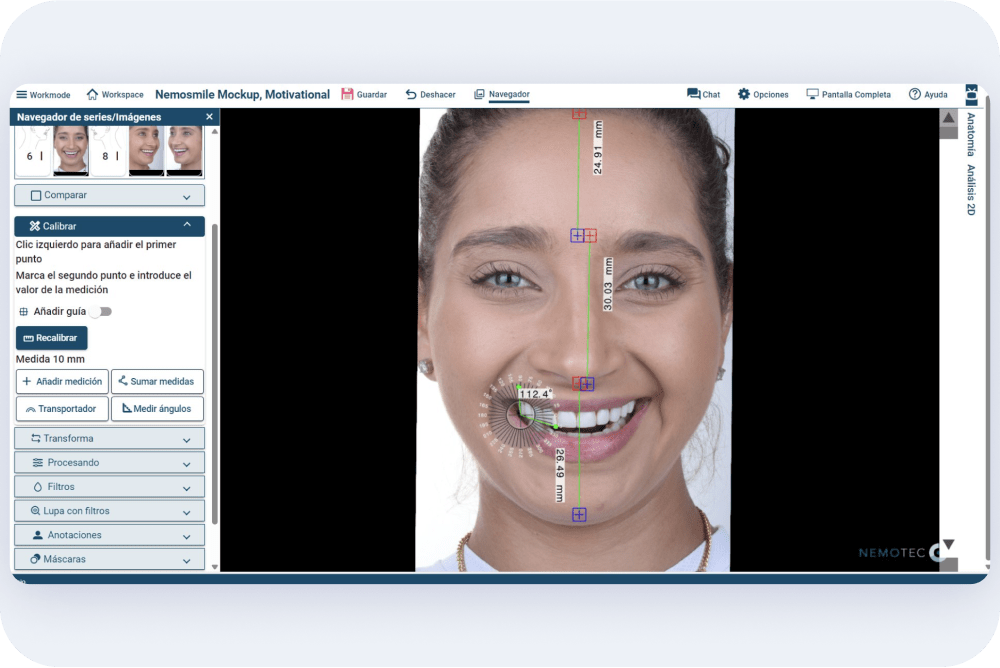
Image editing
Apply different transformations and rotations to images. The image can also be freely cropped and rotated using a vertical and/or horizontal guide.
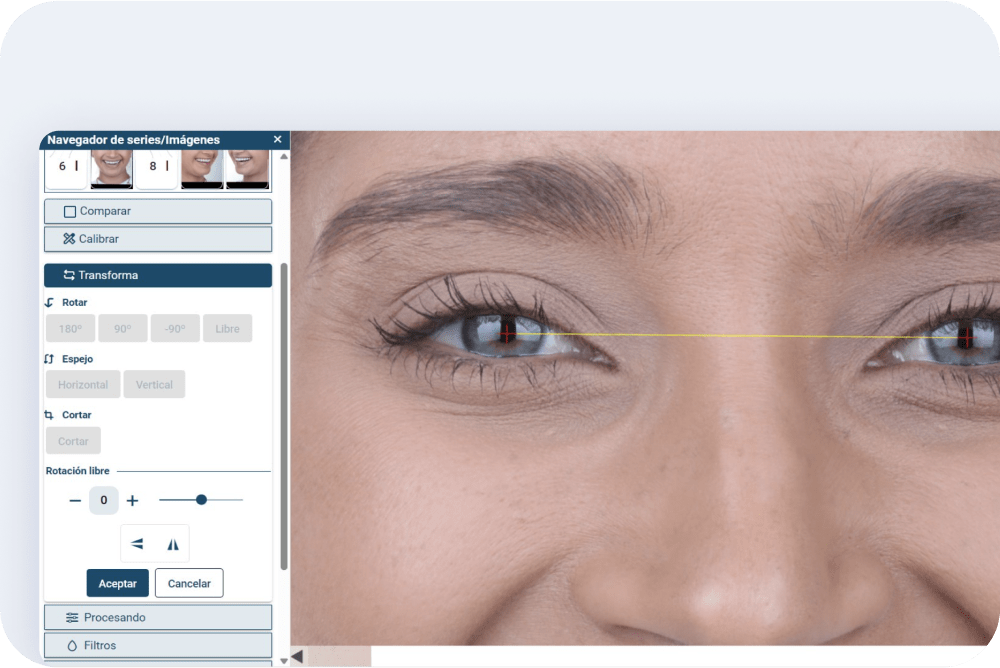
Image processing
Tools available for image processing, such as brightness, contrast, lightness (gamma), hue and saturation adjustment.
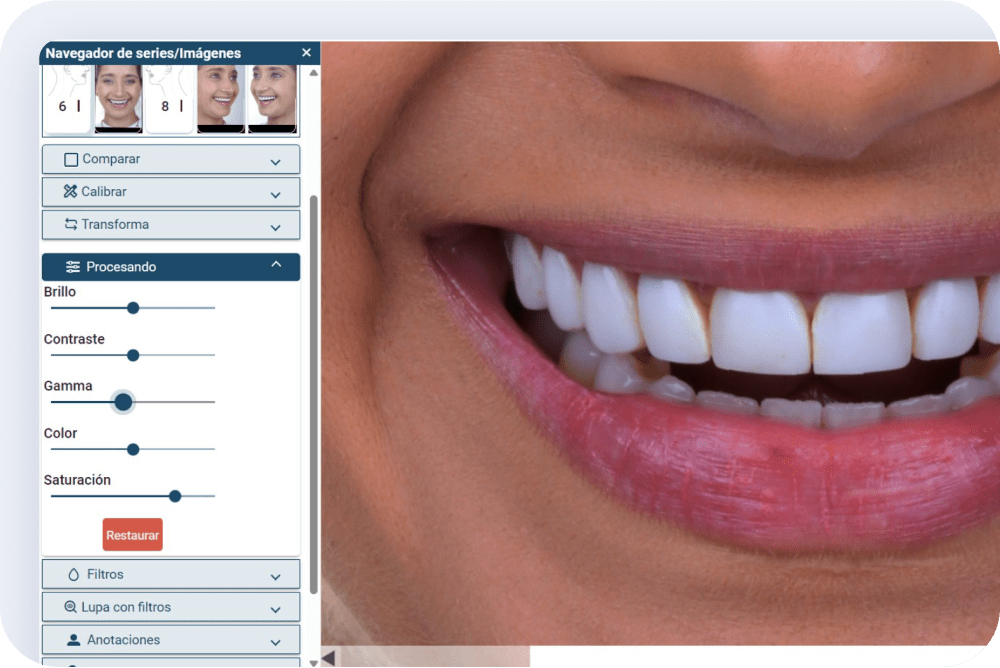
Image filters
Different types of filters can be applied to the image: enhance, texture, highlight, tint, and invert.
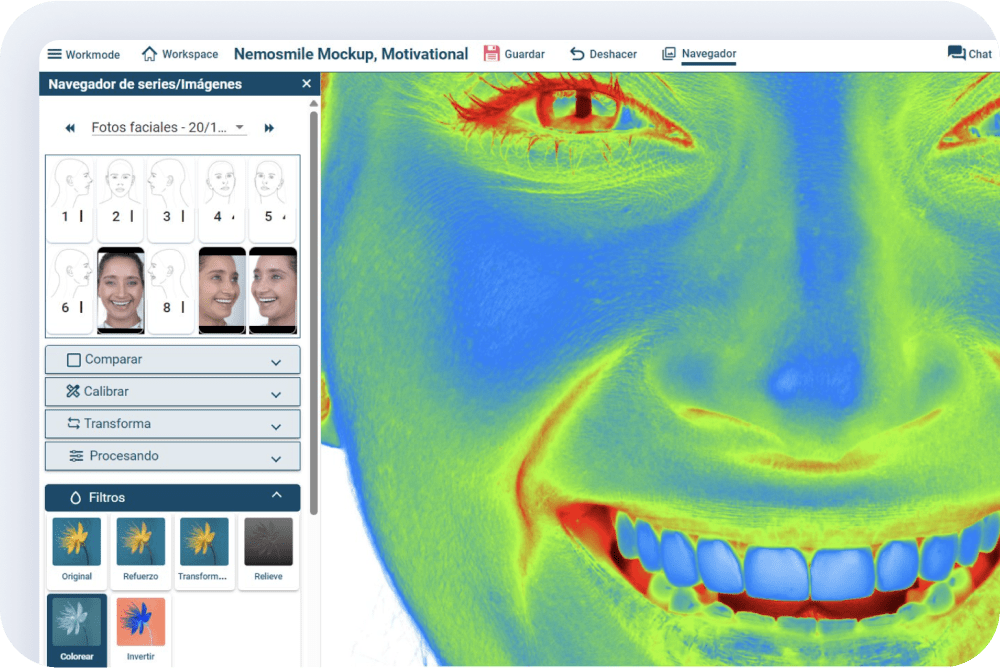
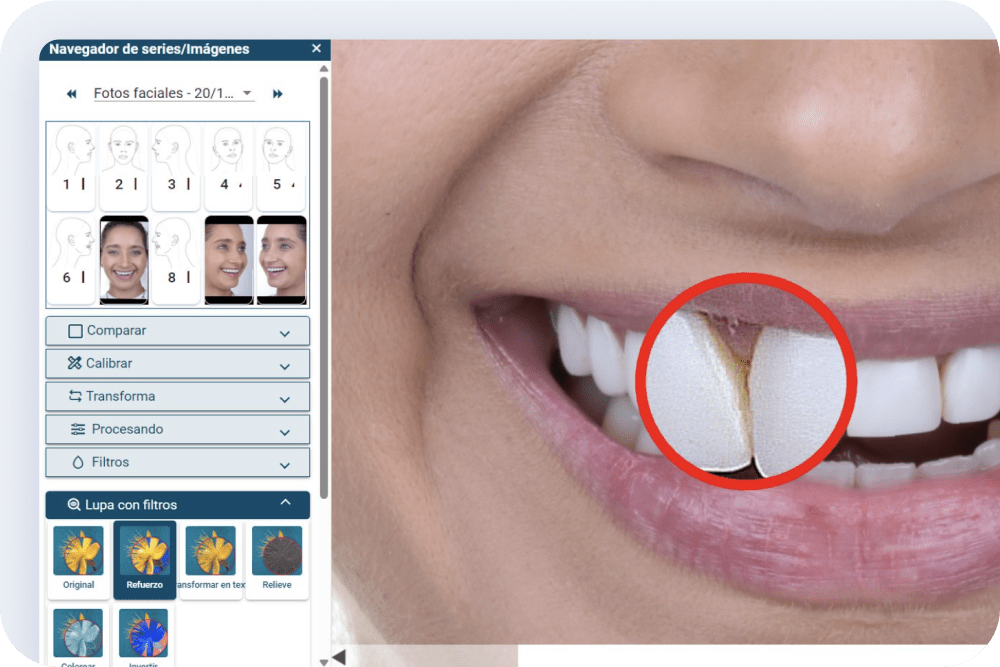
Image filter preview with magnifying glass
The same filters can be applied to specific regions of the image using a tool that acts like a magnifying glass.
Add notes on the image
Add notes and arrows to the image. By right-clicking on the note, you can edit, change the color and size of the text. You can also change the color of the arrow.
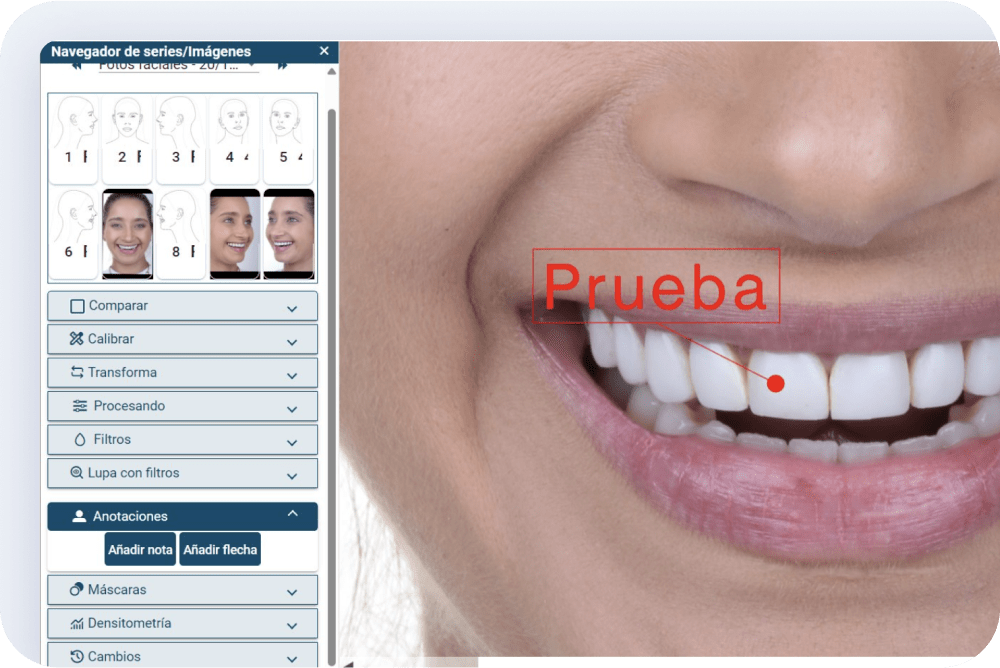
Image masks
The “Masks” tool allows you to label images and highlight specific areas that can be used to train the neural network of a finding detection algorithm.
In this section you will be able to:
- Choose the masks created from the selection made.
- Add or remove masks with the “+” and “-” buttons.
- Associate them to an anatomical structure with the “associate to” button.
- Classify them with the “procedure type” button.
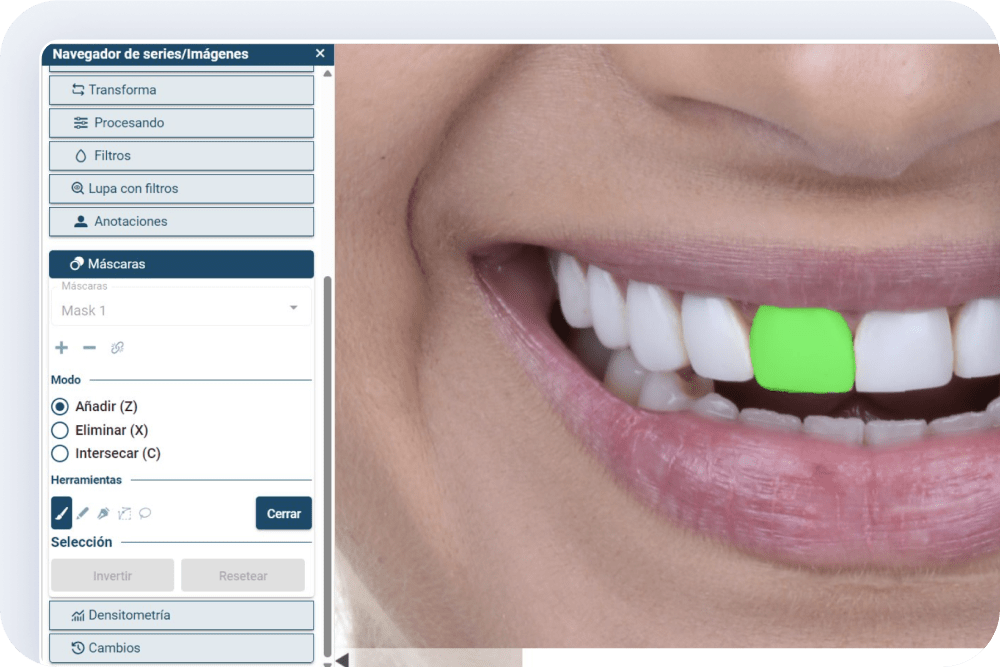
Options to select a mask
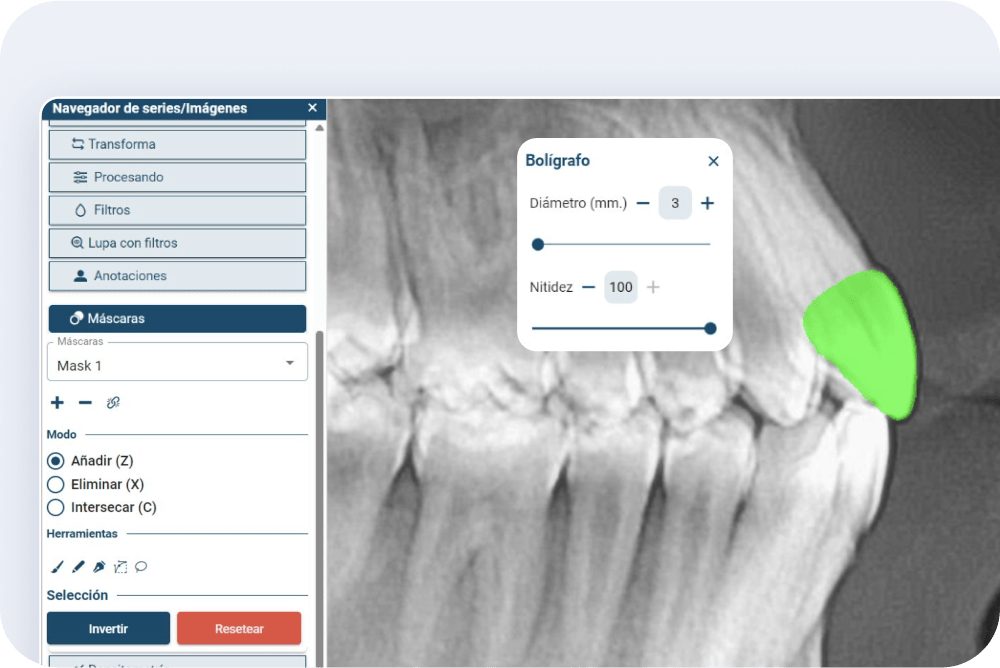
- Brush: allows the user to select the diameter and sharpness to freely paint on the image. To do so, press and drag the cursor over the image to draw the mask (the mode is set to Add).
- Curve: the user will freely draw a perimeter which will then be filled with the chosen color.
- Polyline: the user can draw points to form a polygon which is then filled with the chosen color.
- Bezier: allows tracing curves.
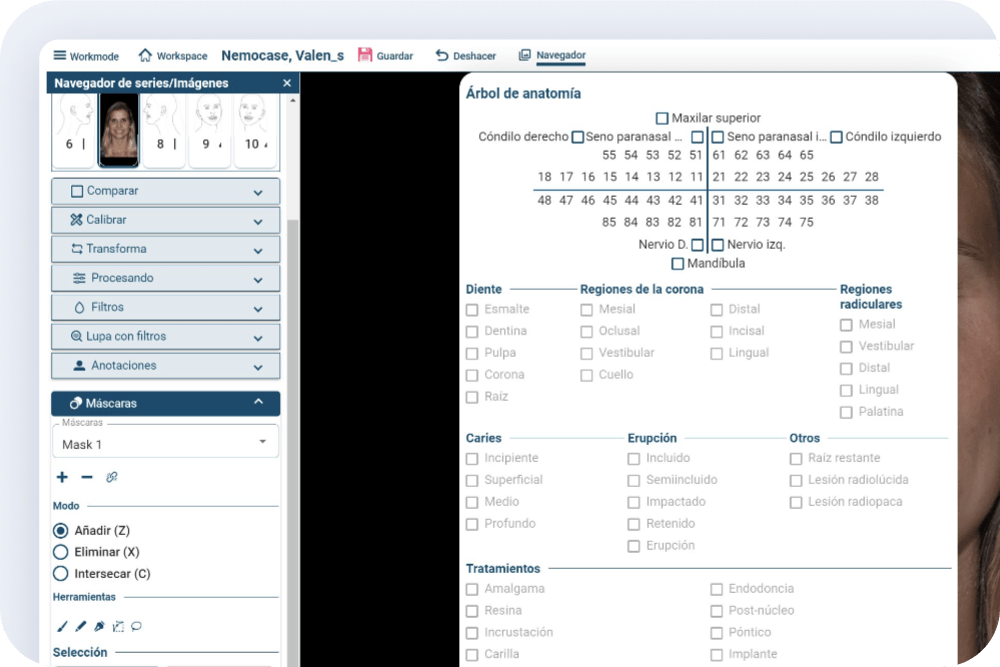
Associate mask to anatomical findings
By clicking on the icon a list of anatomical structures and possible pathological findings is displayed to associate the mask created and to label it.
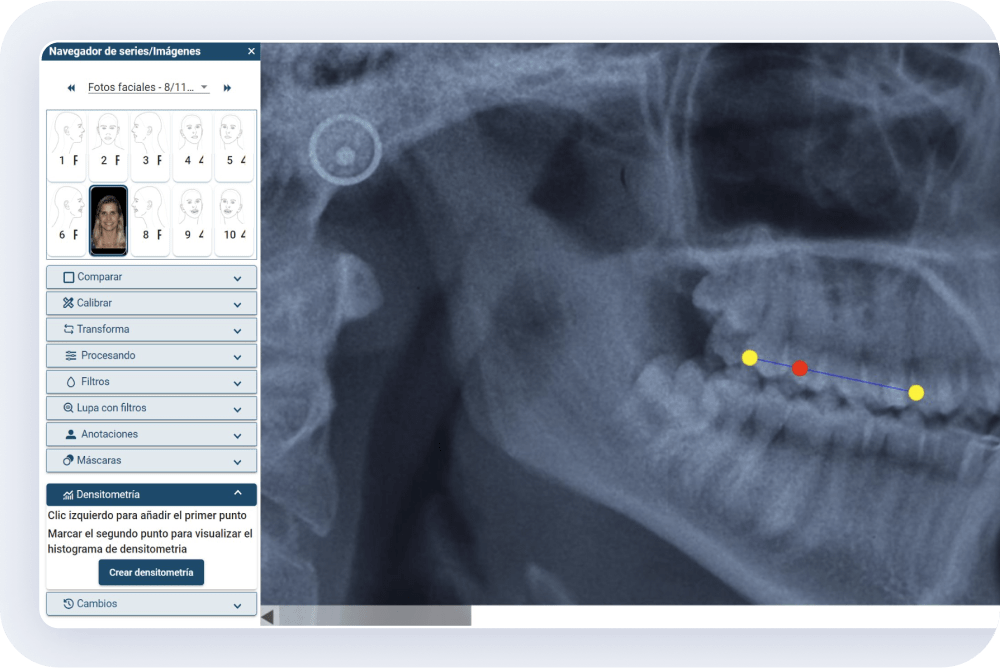
Bone desyntometry
The bone densitometry functionality displays the quantitative measurement of the optical density. The user can select two boundary points (yellow) and scroll with the red dot to change the coordinate displayed in the histogram.
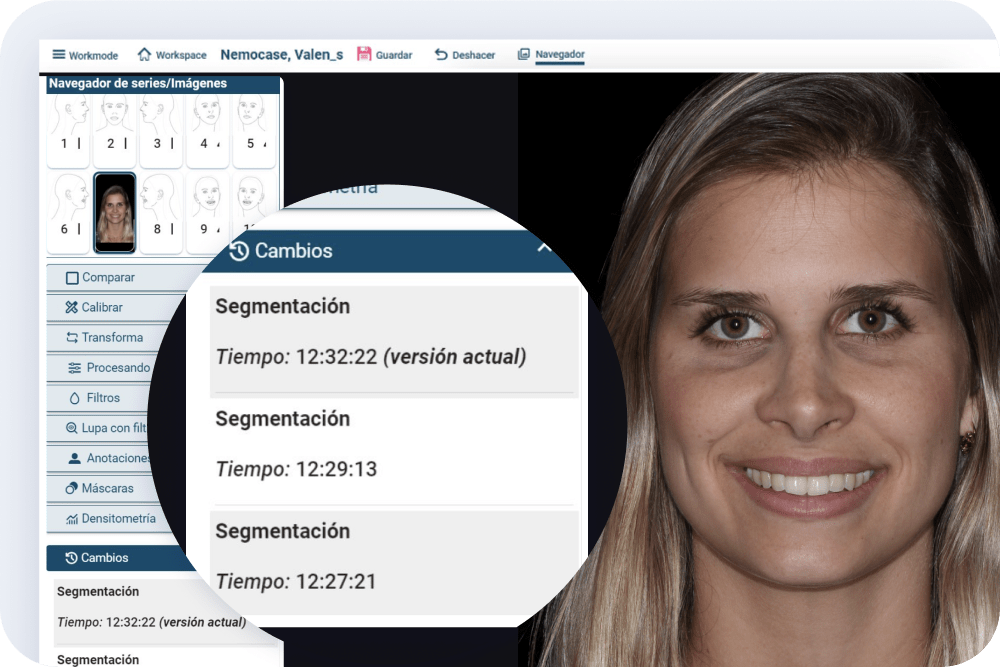
Document change history
It is possible to view the history of changes performed on the working document.
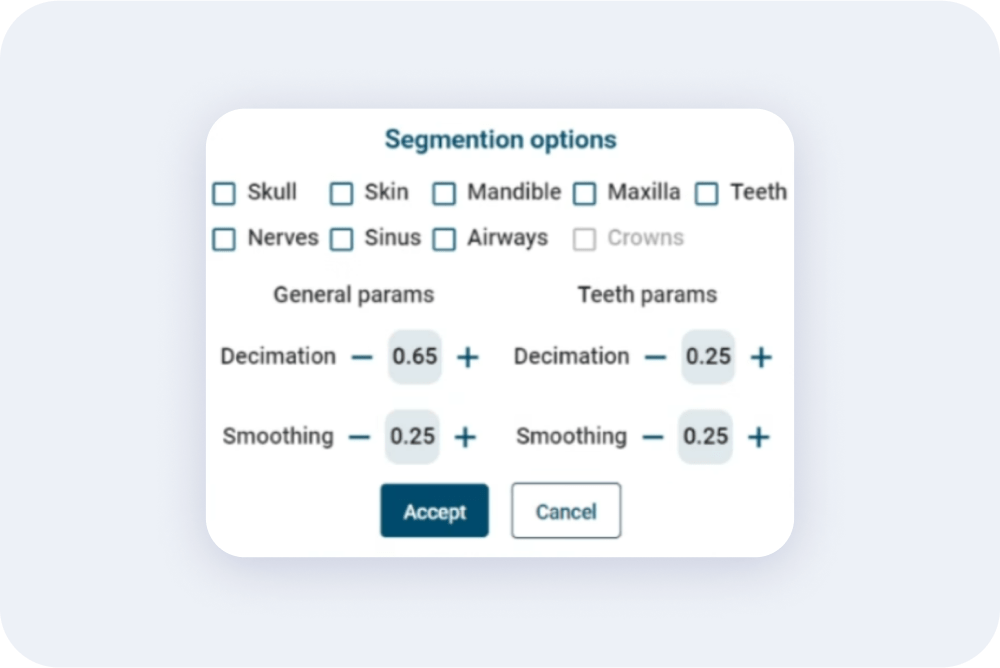
Apply automatic segmentation to generate radiological slices
Automatic segmentation option is added in the import of DICOM and/or models ( as long as the client has the license), this allows the automatic alignment and segmentation of the following structures: skull, skin, mandible, maxilla, teeth, nerves, sinuses, airways and crowns.
In NemoFAB and NemoScan, the possibility to automatically trace the arches and the panoramic view of the arches is integrated if automatic segmentation has been used.
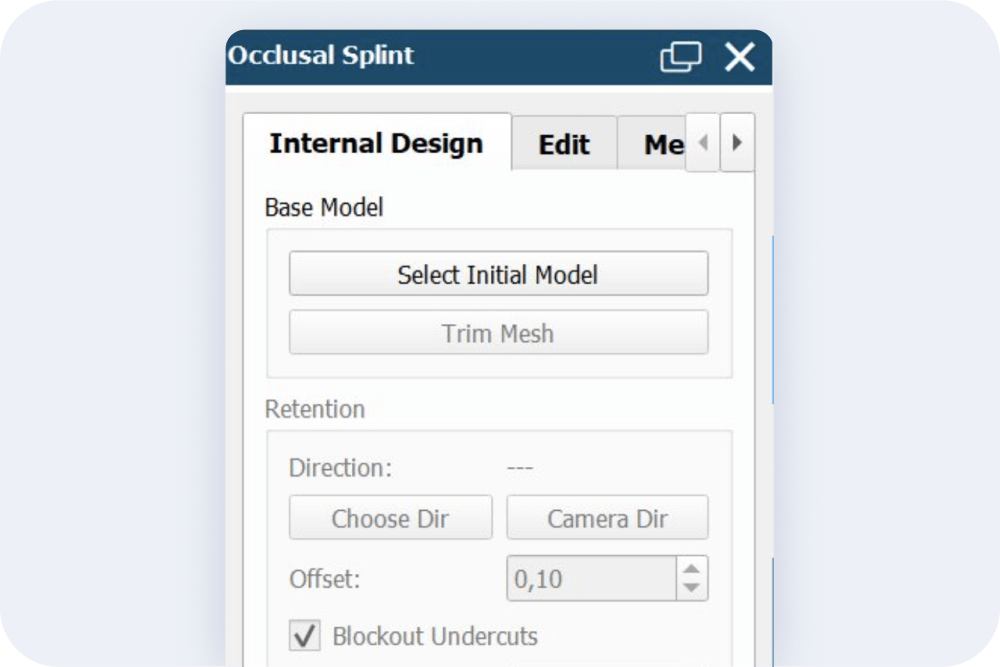
New product, bite splints
The complete wizard for the Michigan or bite splint has been developed and integrated.
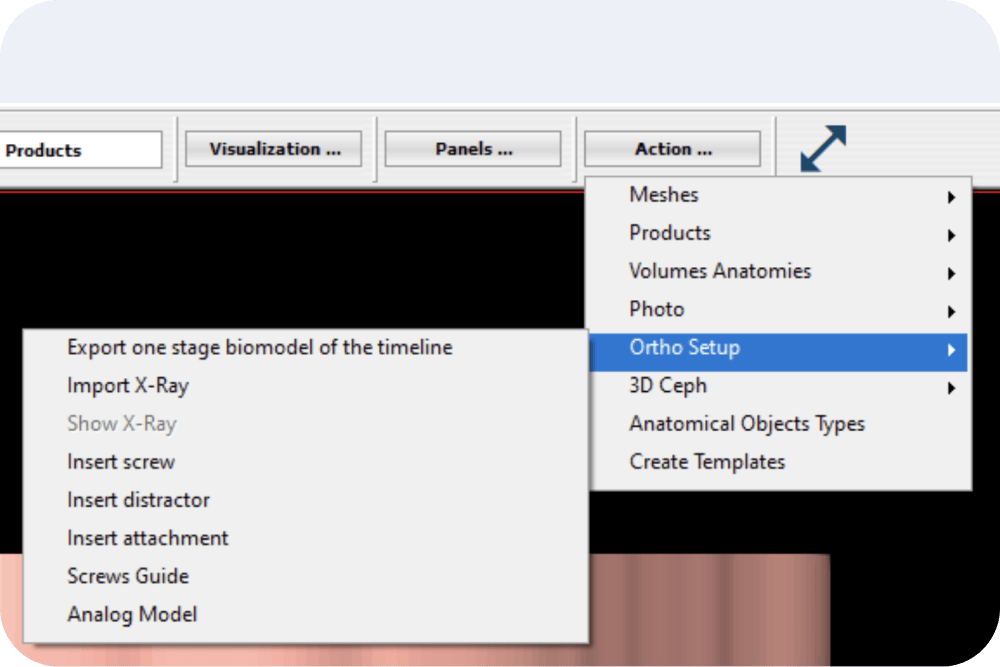
Import radiographs now in the action button
The option to import radiographs has been moved to the action button. Available in all modules.
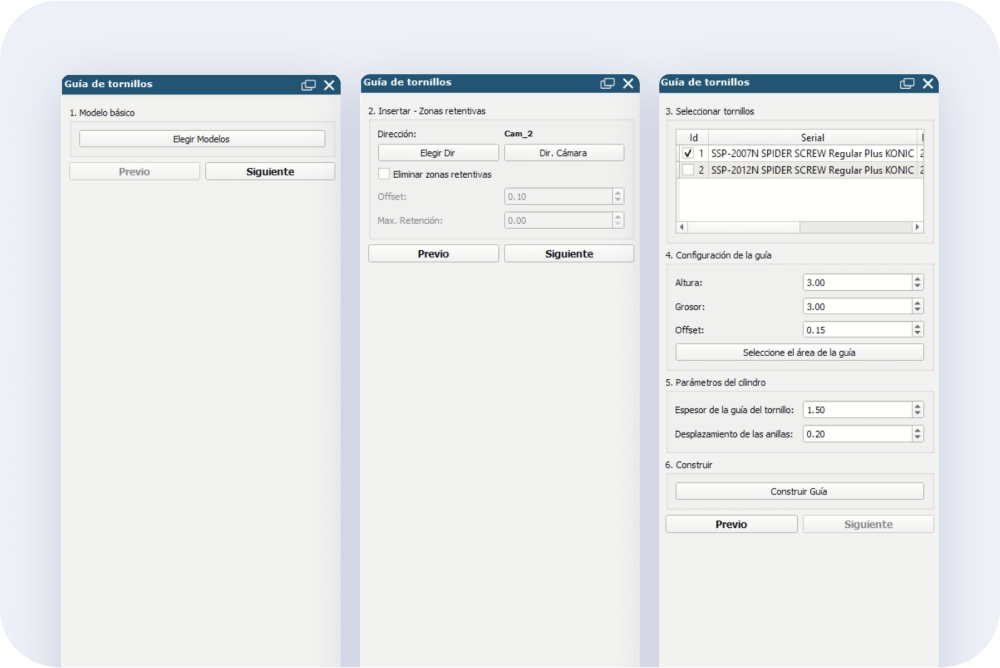
Improved microscrew guide
The micro screw guide wizard has been divided into steps to improve its usability. Available in the NemoCast and NemoScan modules.
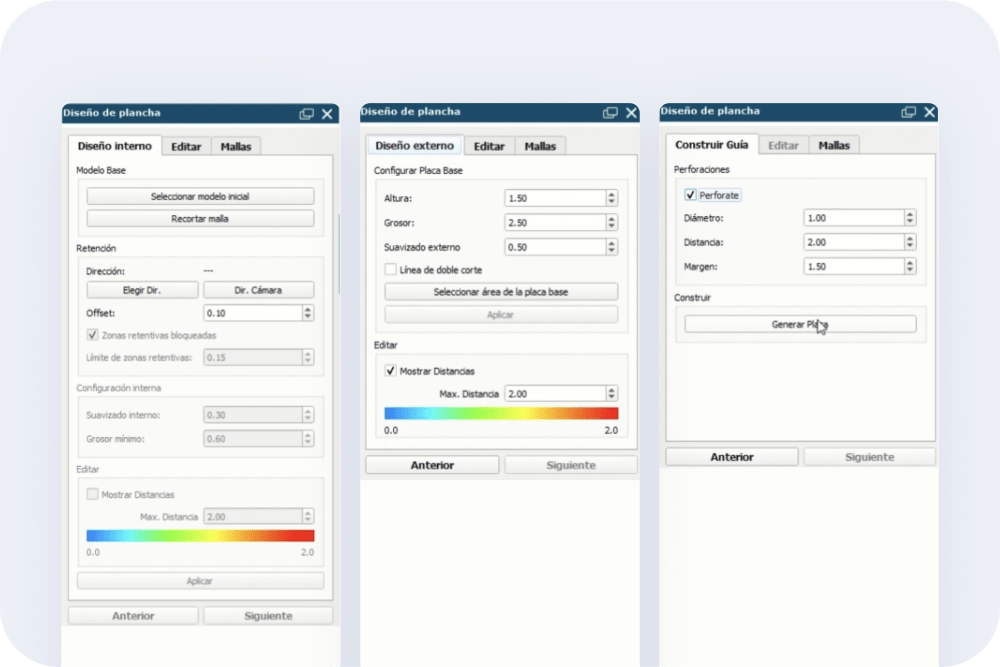
Improved base plate design
The base plate design wizard has been divided into steps to improve its usability. Available in all 3D modules.
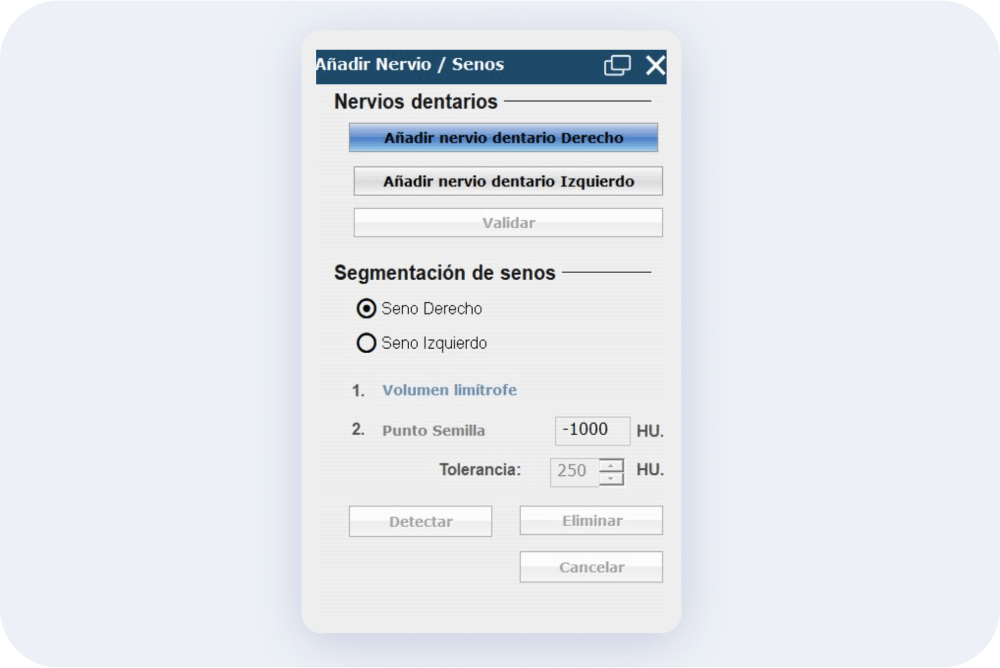
Changes in dental nerve segmentation
In NemoFAB and NemoScan, nerve segmentation is now separated into right and left nerves, being now considered as meshes instead of objects. The same applies to NemoScan for the maxillary sinuses.
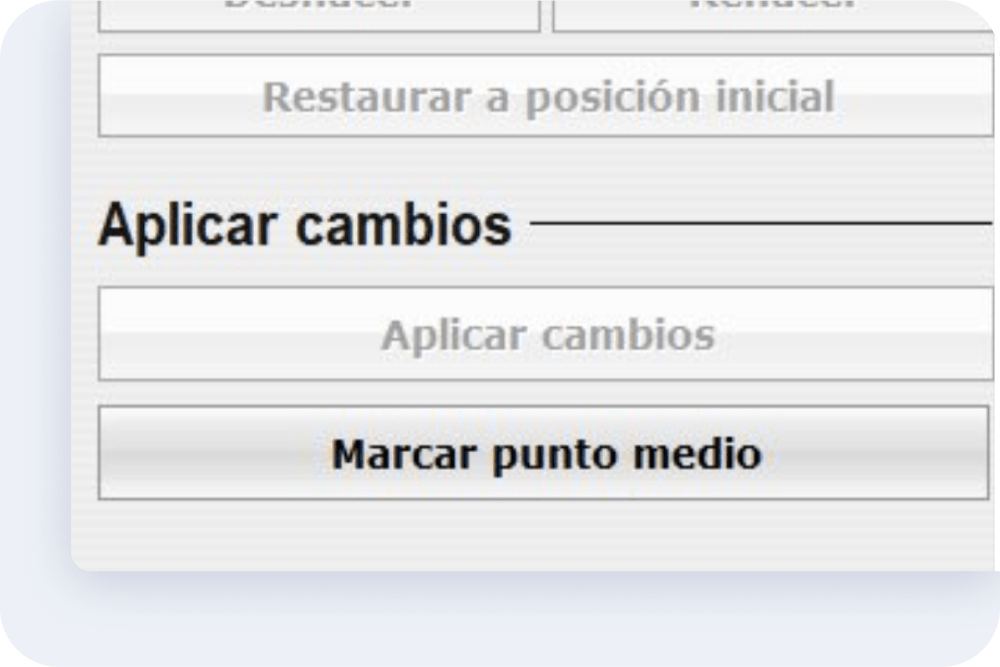
New option; locate the face midline in photo orientation
In NemoFAB, NemoCast and NemoSmile, the option to locate the facial midline in the orientation / photo section has been added.
New tool in prosthetic wax-ups
A new tool for deforming prostheses using the anatomical reference points of the coronal surface, such as cusps and marginal crests, has been integrated. Available in the NemoScan and NemoSmile modules.
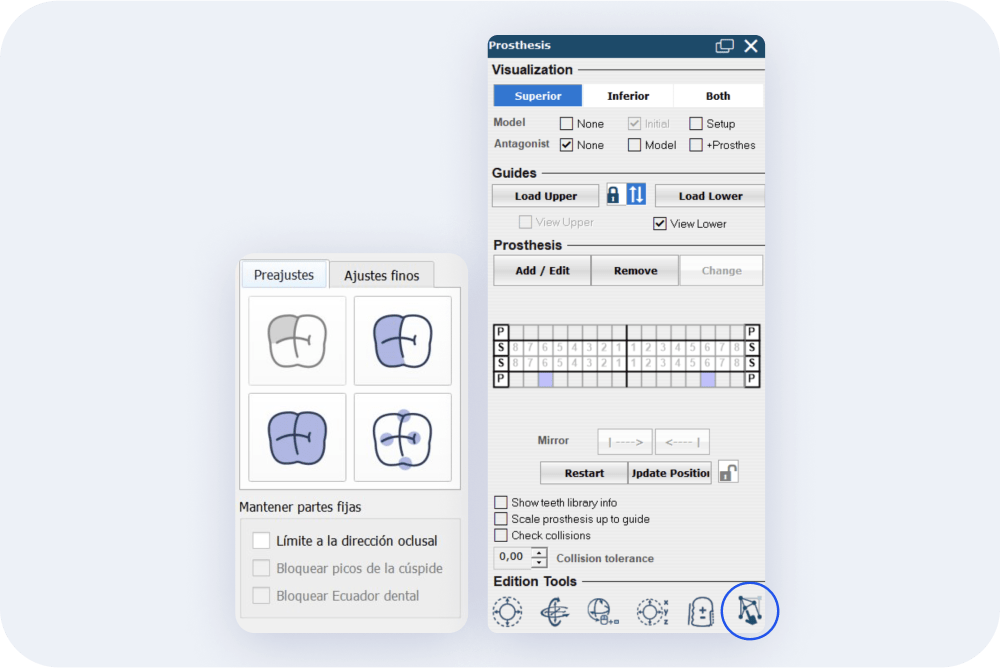
New look in the sculpt icons
The icons of the mesh sculpting tool have a new look. In addition, a new option to deform meshes is integrated.

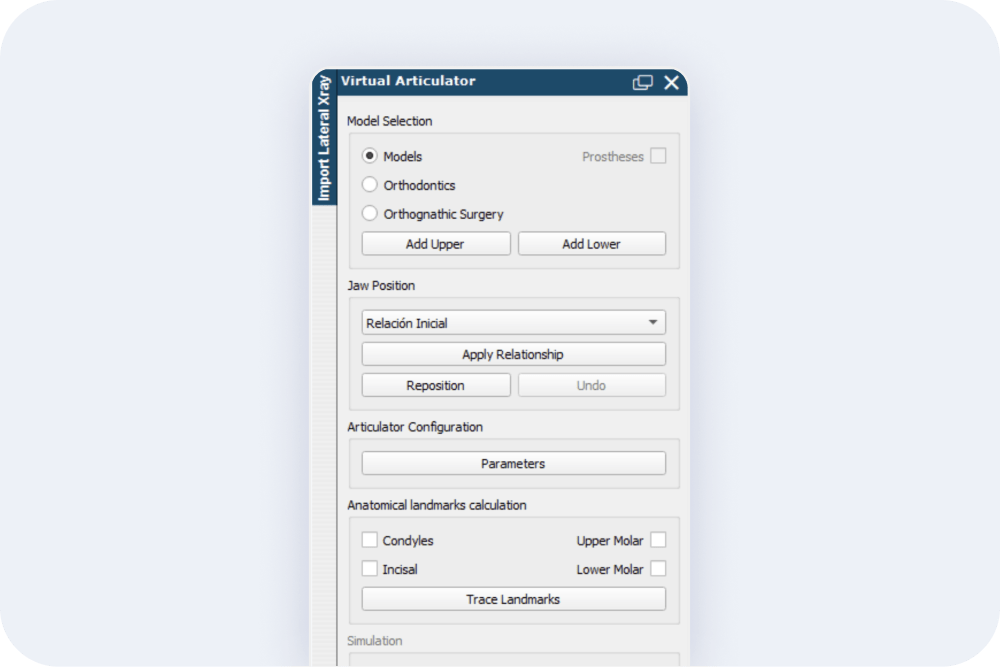
Redesign of the virtual articulator
In NemoCast and NemoFAB, the virtual articulator has been reorganized to make it more clear and intuitive while preserving all its functionalities.
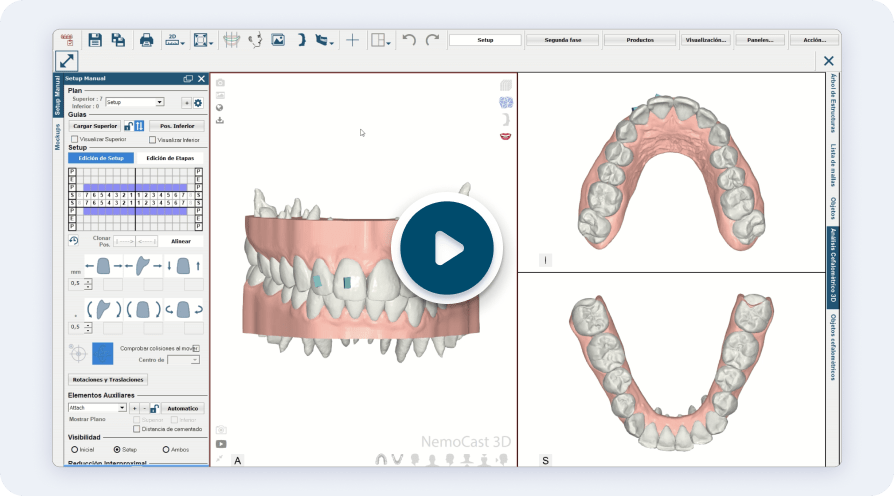
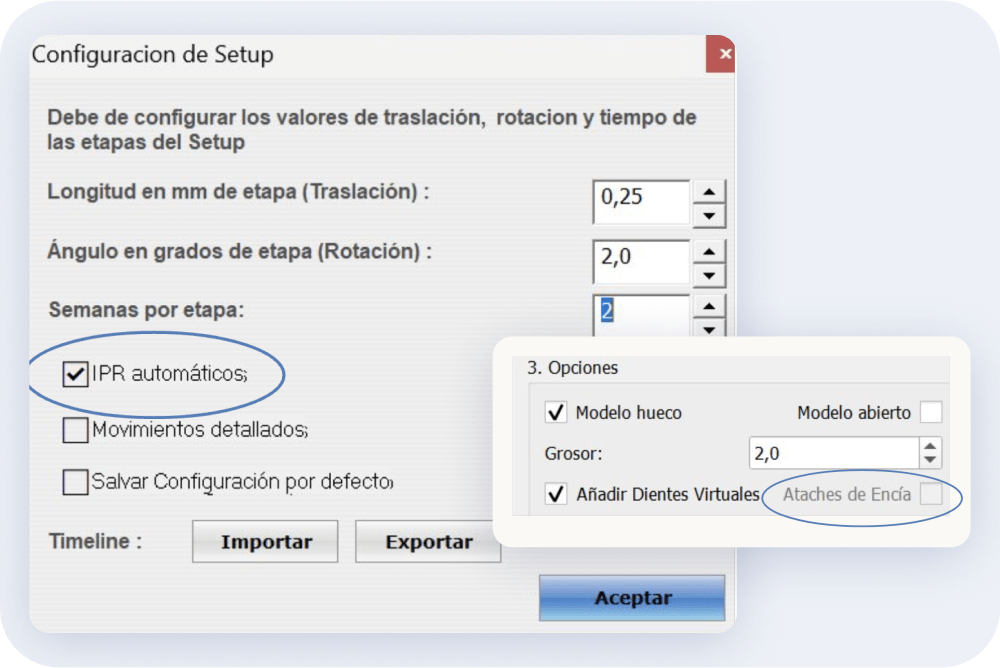
Setup configuration
- Automatic IPR (Interproximal Reduction) now available.
- Possibility to remove precision cuts in one stage.
- When restarting the setup, attachments, brackets, precision cuts and the overcorrection phase are removed.
- Load or save prescriptions in the automatic alignment process.
- Possibility to change the center of rotation in the tooth movement tool.
- Attachments, brackets, precision cuts, etc., are preserved when re-segmenting teeth.
- Added the possibility to add mandibular advancement attachment and export them in the biomodels.
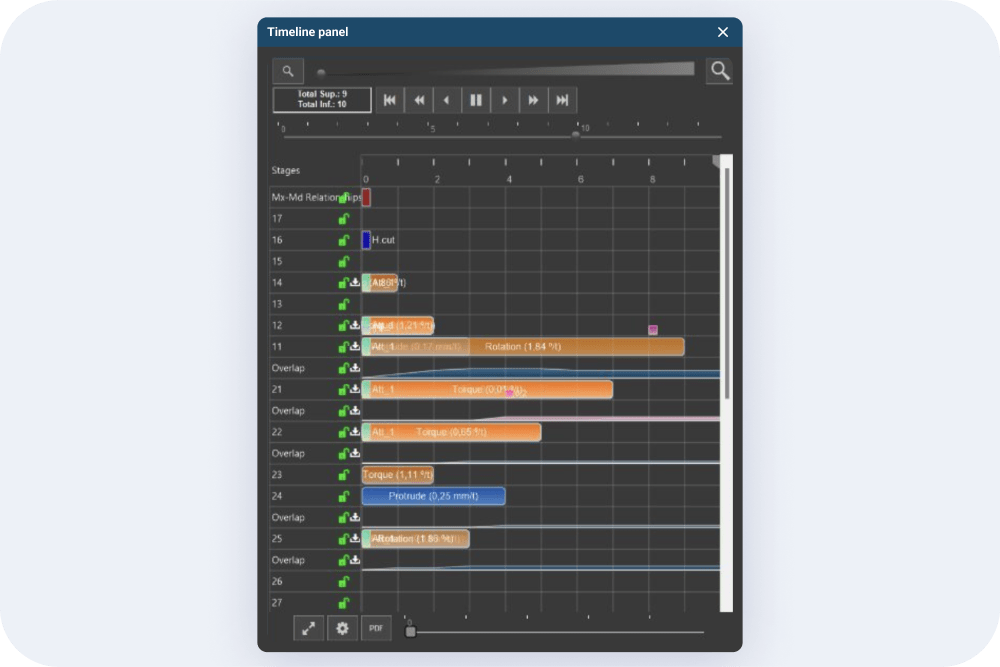
Timeline
- The refresh button has been removed from the sequencing line. Now the position of the teeth is automatically recalculated.
- Optimization of the distance and collision measurements between teeth has been improved for faster and more accurate results.
- Overlappings are now automatically updated on the timeline after changing the movements.
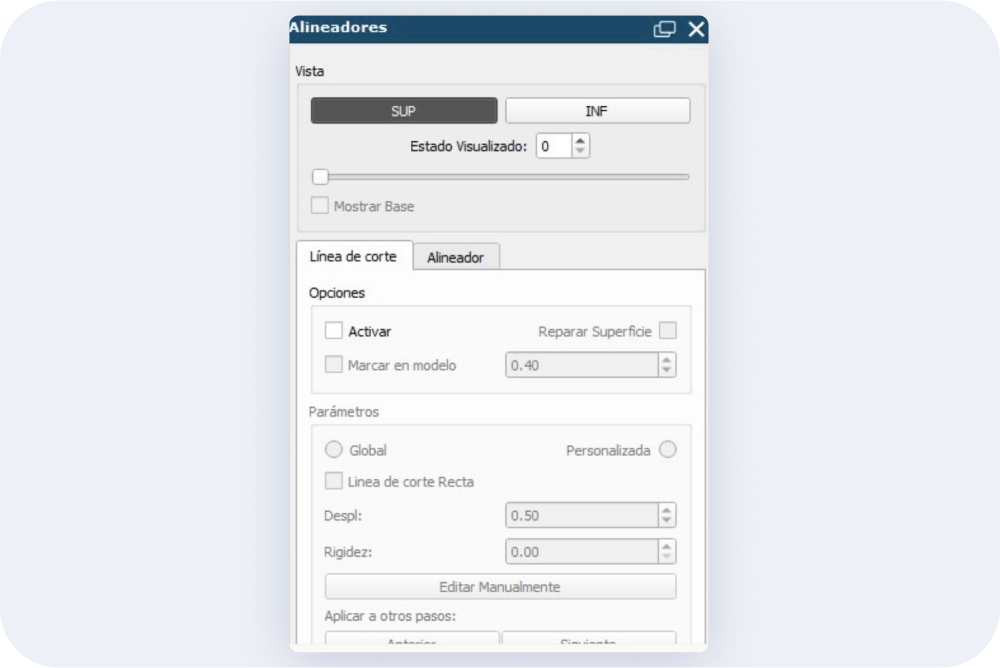
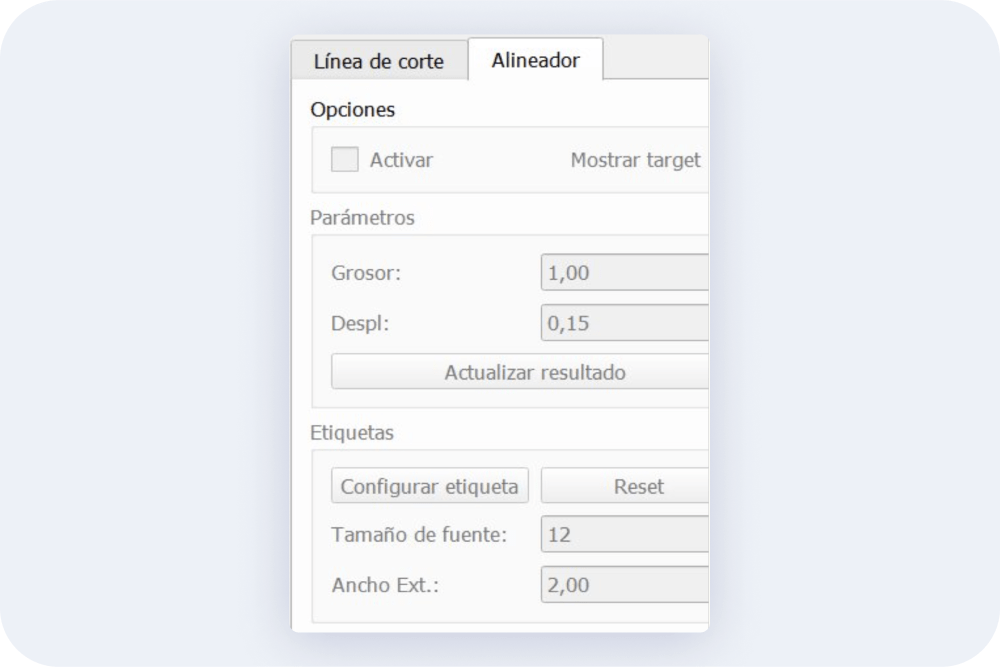
Cut line
The option to use marks for laser printers to identify the position of the cutting line is now available.
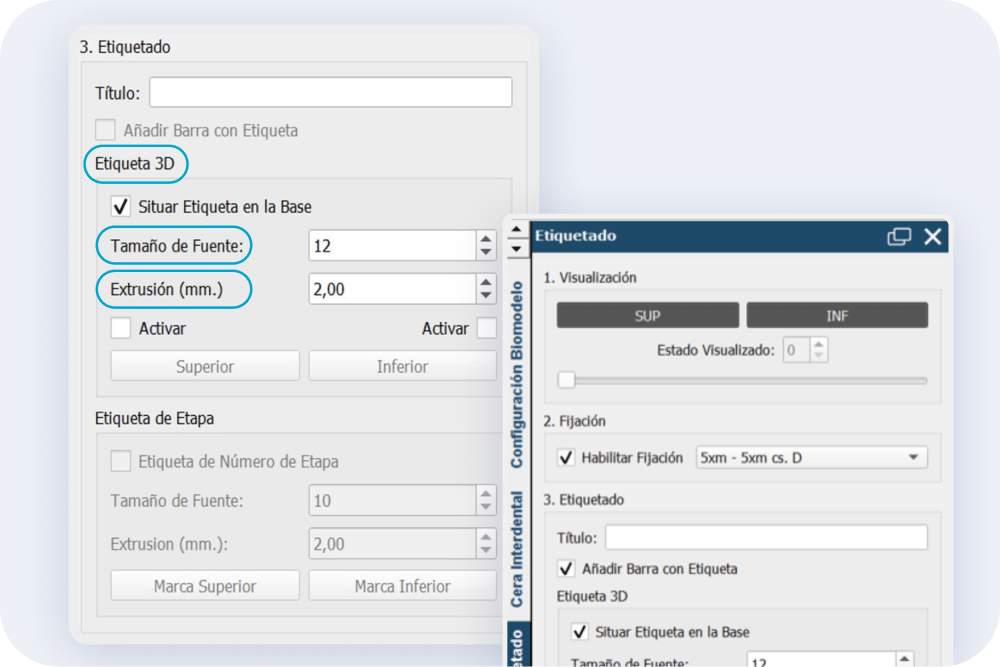
Biomodel settings
- Increased options to add labels on models and aligners and to change parameters such as font size.
- The option to add bases (Base/Fixation) has been moved from Biomodels to Labeling, allowing the user to move the base on the biomodel.
- More customization options are added to the biomodel bases:
- Choose the origin of the base on the biomodel.
- Customize the name of the exported files.
- Position the label on the base.
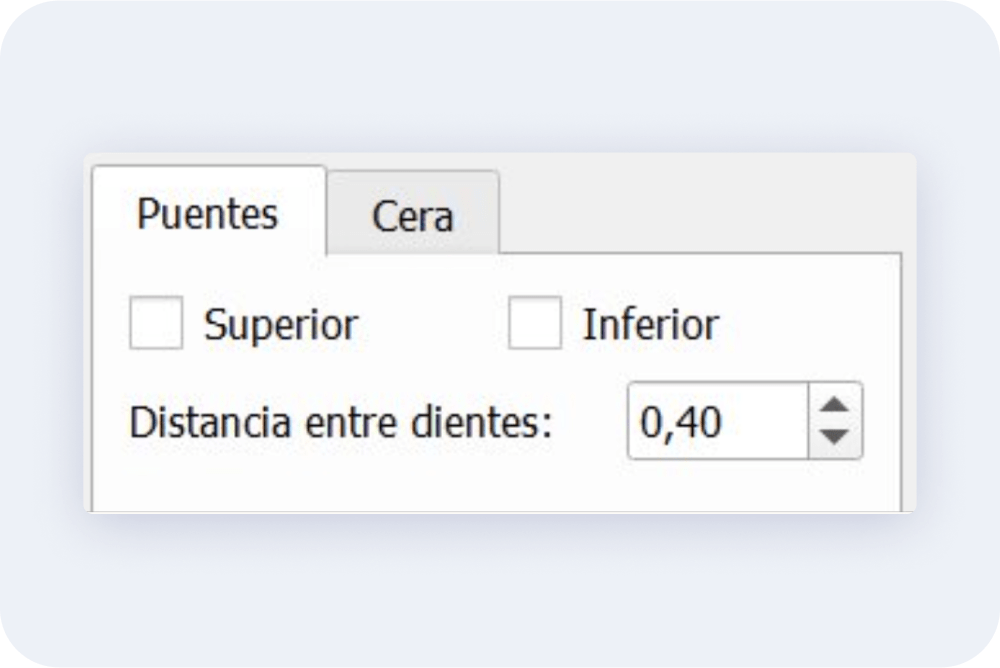
Virtual Wax
The virtual wax section is divided into bridges and wax. It allows to add inter-tooth bridges and/or virtual wax on biomodel, to be later exported.
Aligners
The aligners panel has been simplified, divided into Cutting line and Aligners to make it more intuitive. Users who do not want to export the aligner can create only the cutting line and it is not mandatory to complete all the steps in the panel.
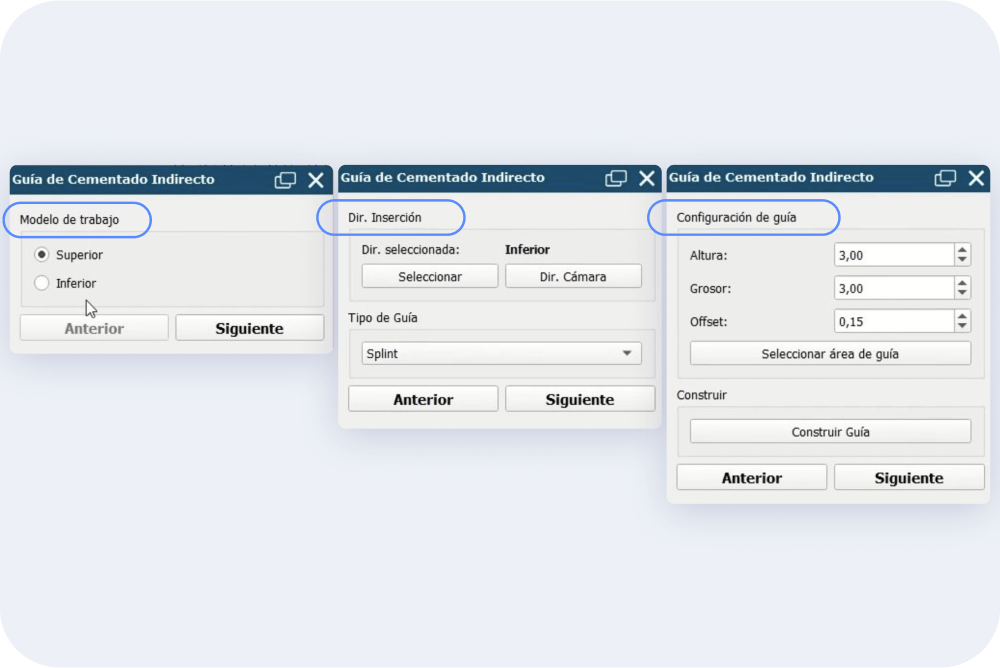
More intuitive bonding guide panel
The indirect bonding guide design panel has been subdivided into sections for better usability.
In addition, only one field has been left to add the offset, making the process more efficient.
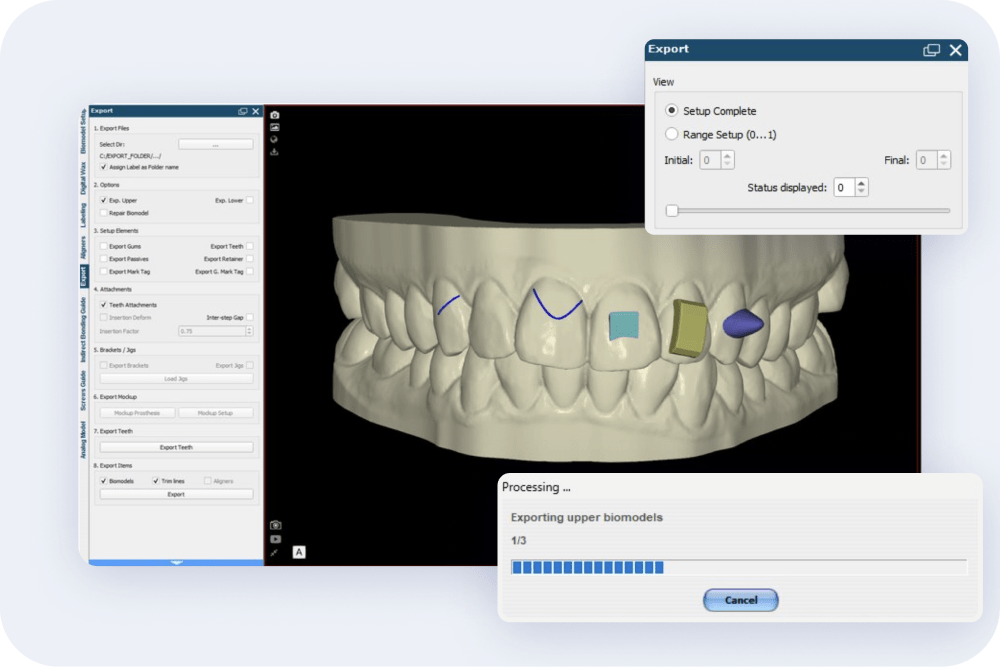
Export of Biomodels
- It includes the export of biomodels with elastic hooks and button cuts./li>
- Added the possibility of exporting biomodels by selecting a specific range of aligners.
- Added the option to abort the biomodel export process with the “cancel” button.
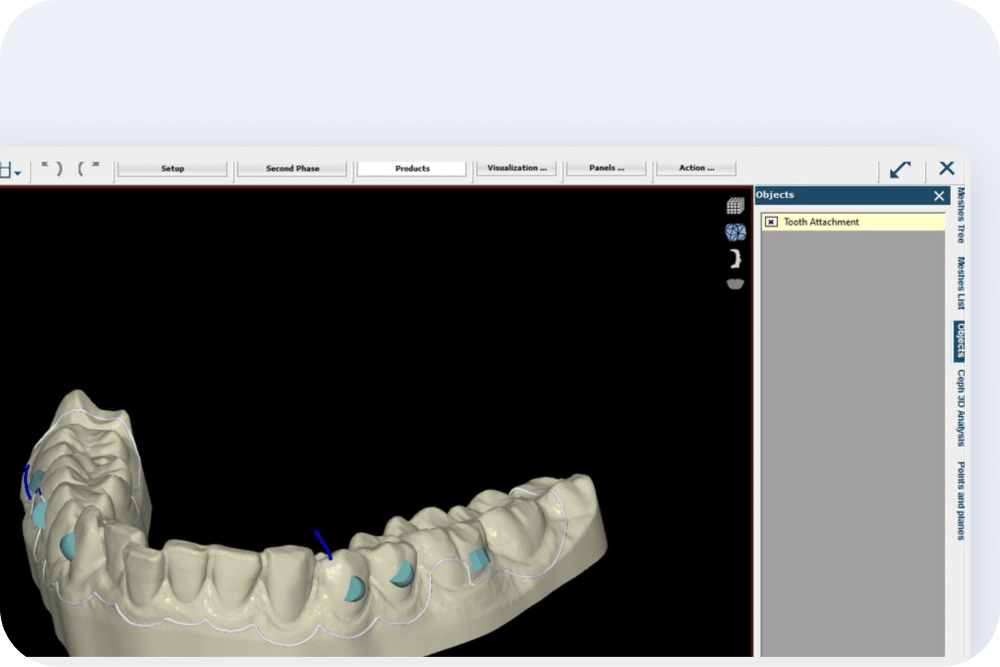
Display of elastic hooks and cutting buttons
Activating and deactivating the display of spring hooks and cut buttons is now done from the list of objects grouped with the rest of attachments.
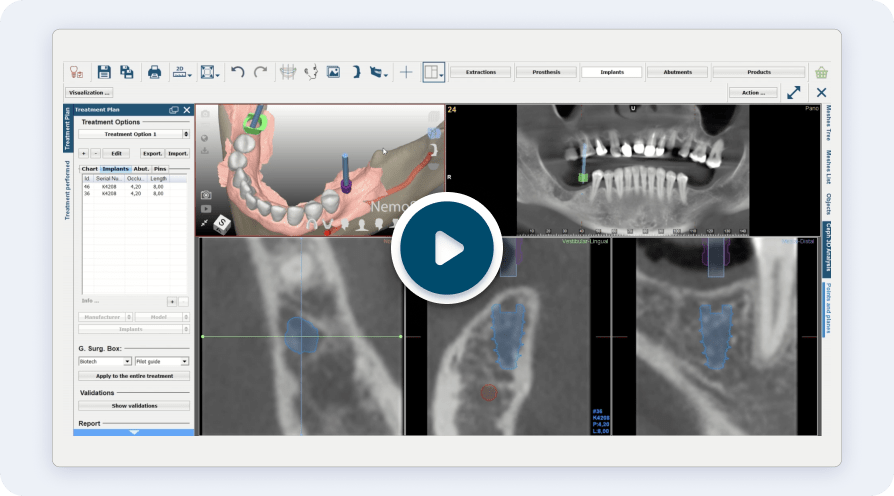
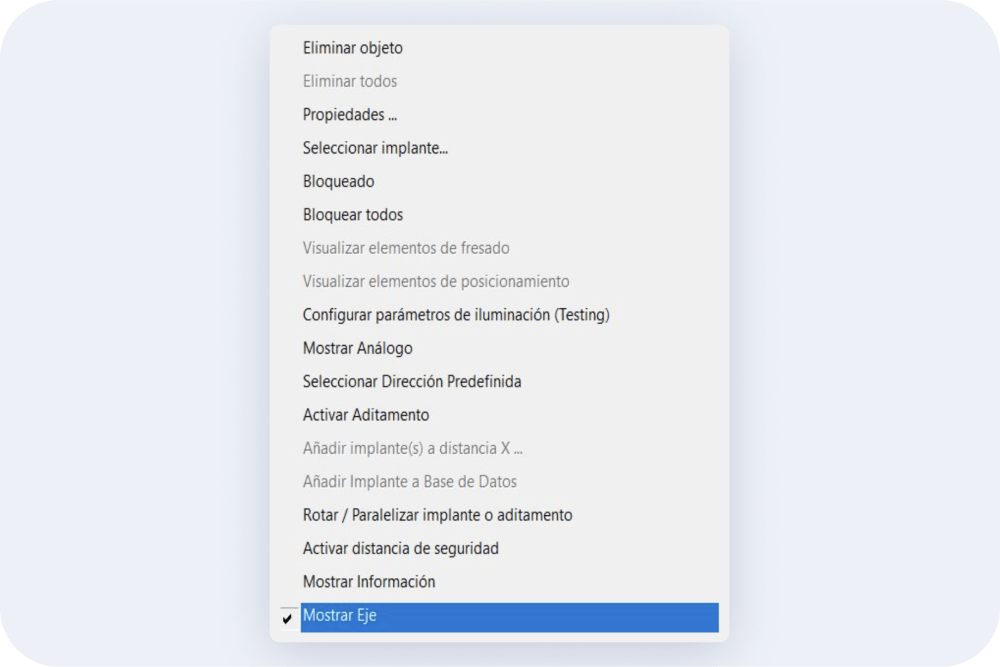
Show Axis option in context menu
It is added to the context menu the option to show the implant axis by right clicking on it instead of the visualization button.
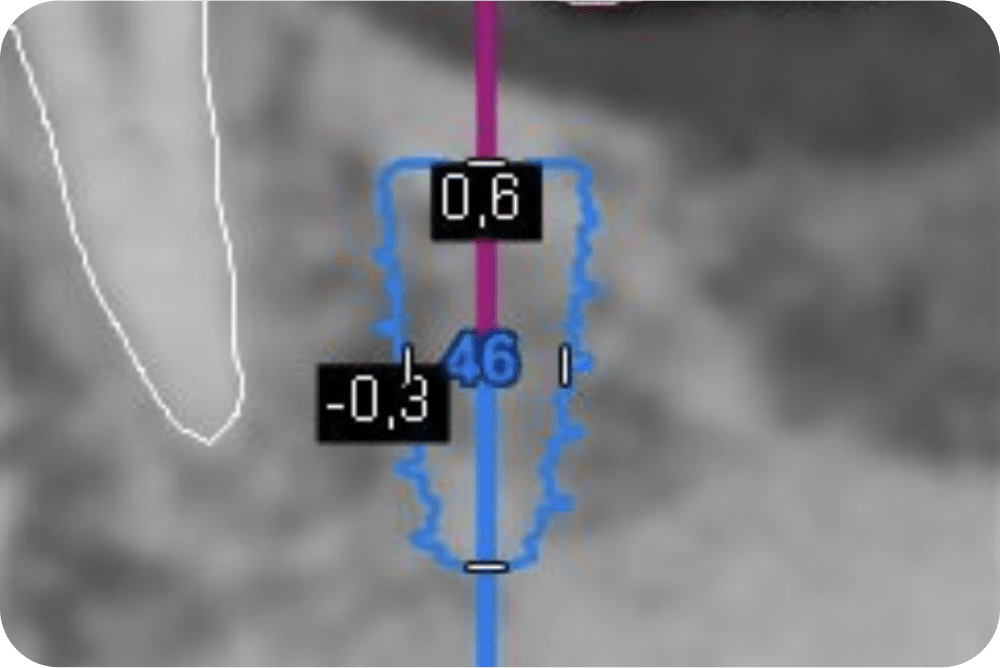
Translation in millimeters
When moving the implant the translation in millimeters is displayed.
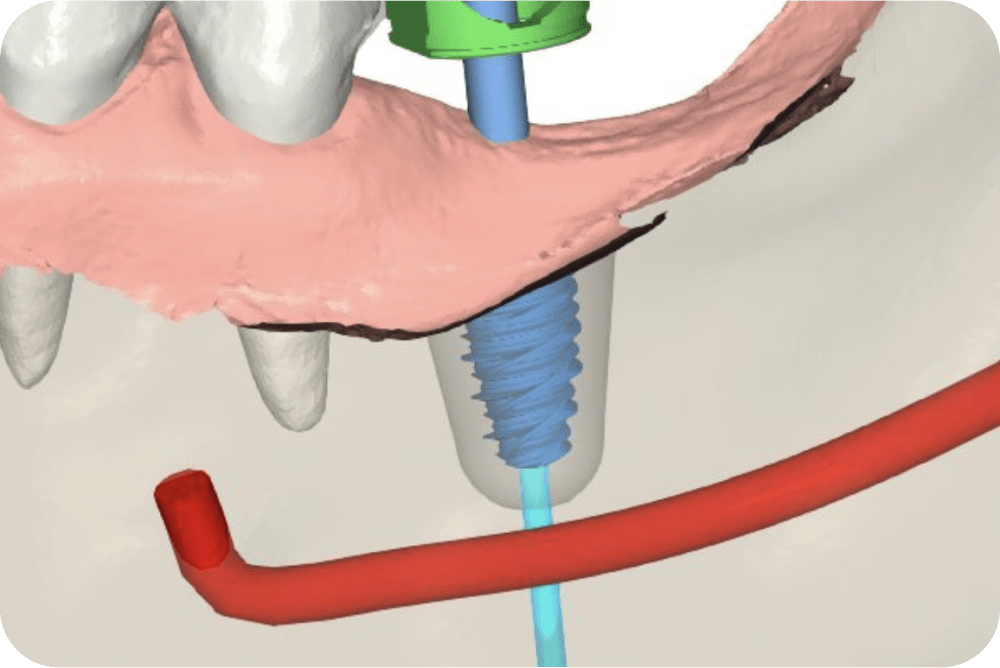
Implant safety region
The implant safety region is enabled by right clicking on the implant.
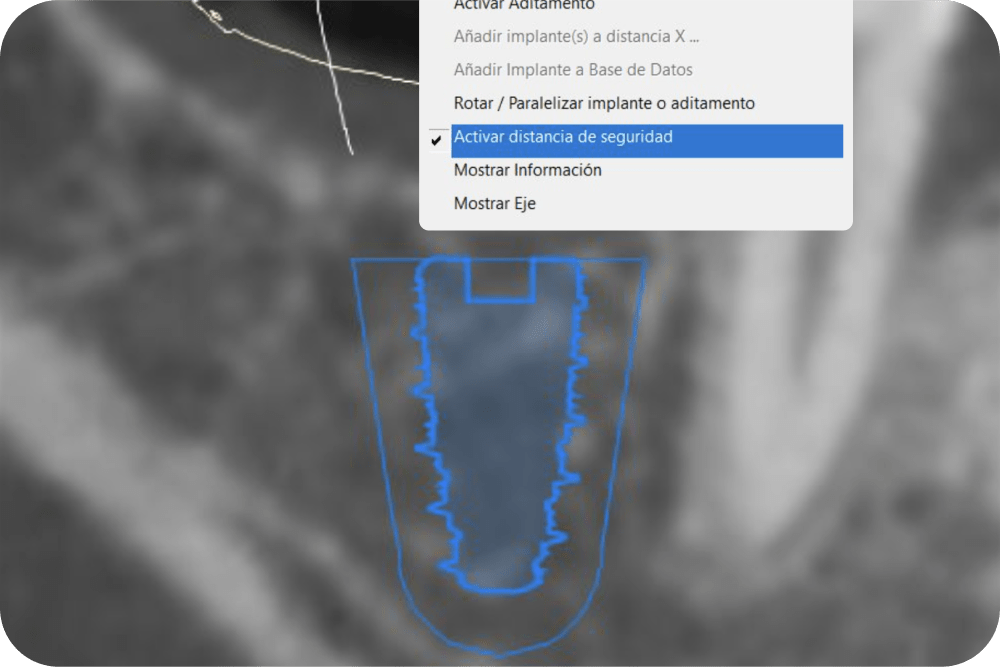
Safety region visible in 3D
Better visualization of the safety region in the CBCT slices and also shown in the 3D view.
New navigation shortcuts
⇧Shift + ⬆️ = Move to coronal
⇧Shift + ⬇️ = Move to apical
⇧Shift + ⬅️ = Rotate over its left axis
⇧Shift + ➡️ = Rotate over its right axis
⇧Shift + Ctrl + ⬆️ = Move to buccal
⇧Shift + Ctrl + ⬇️ = Move to lingual/palatal
⇧Shift + Ctrl + ⬅️ = Move to mesial
⇧Shift + Ctrl + ➡️ = Move to distal
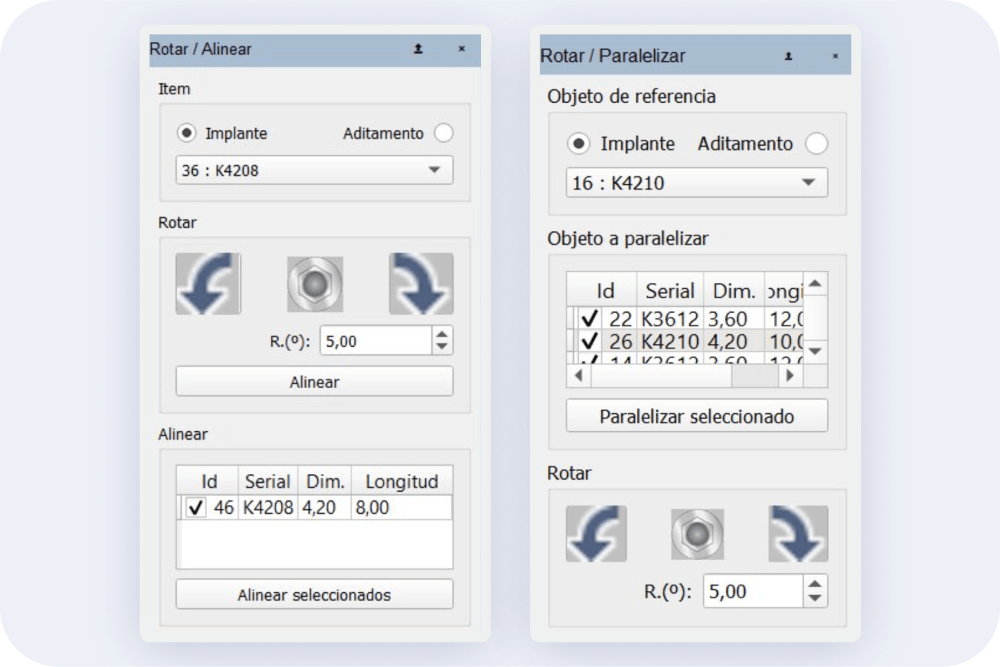
Redesign of the rotate / parallelize implants or abutments panel
The “Rotate implant through axis” option has been redesigned in a new panel to rotate or parallelize implants or abutments by selecting one as a reference.
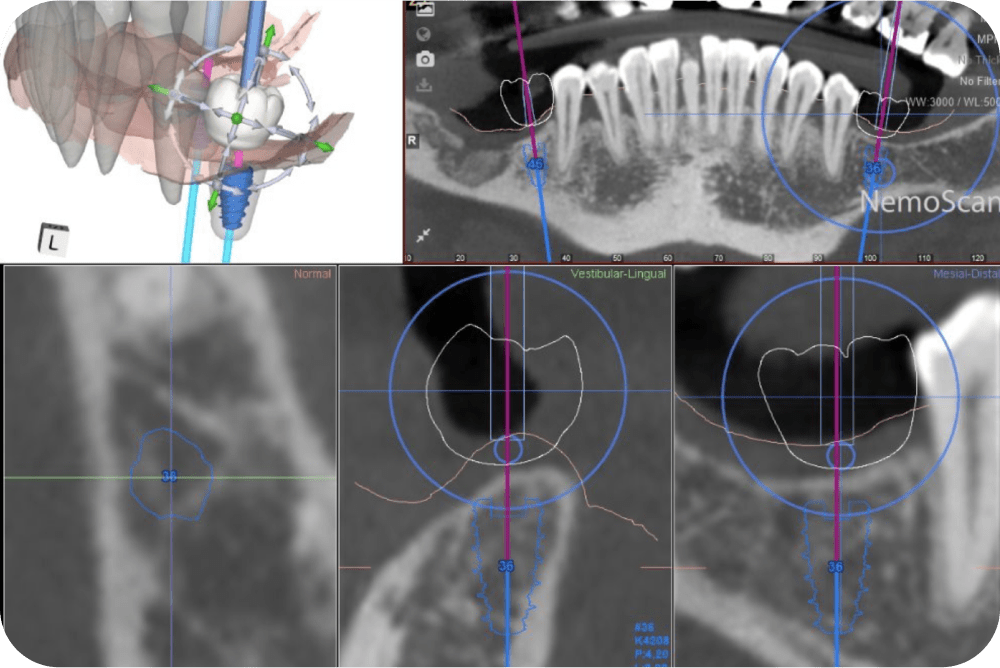
Digital wax-up
The digital wax-up can now be modified directly from the 3D view in the “implant planning” work panel. Clicking directly on the prosthetic mesh will display trackers for the 2D and 3D view.
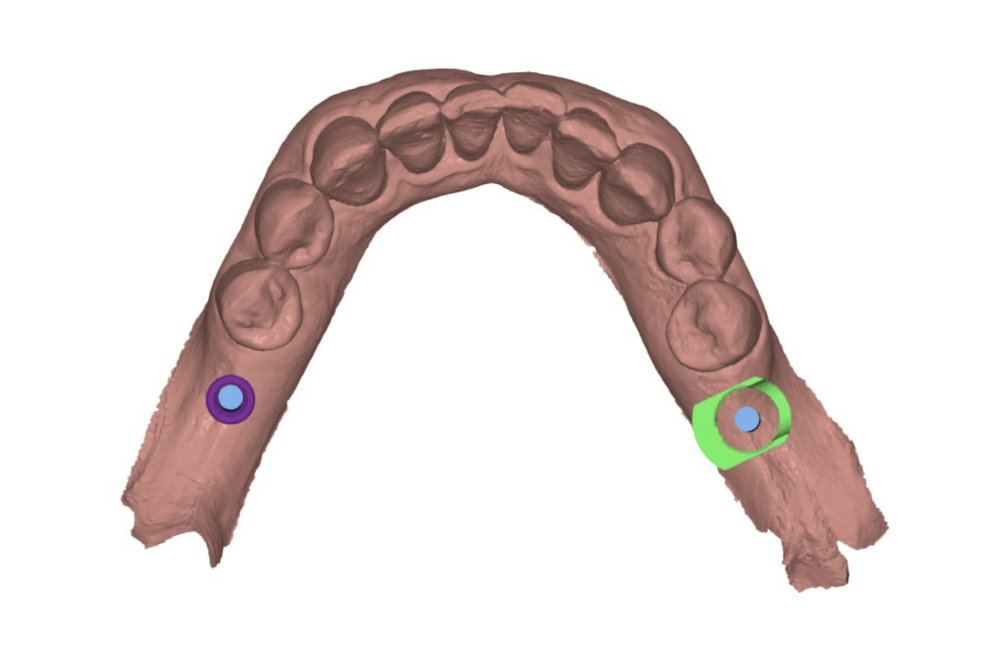
Using different surgical boxes
Different surgical boxes can be used in the same treatment plan, giving more flexibility in planning of treatments.
Optimization of features
Movements and distance calculations in implant planning have been optimized.
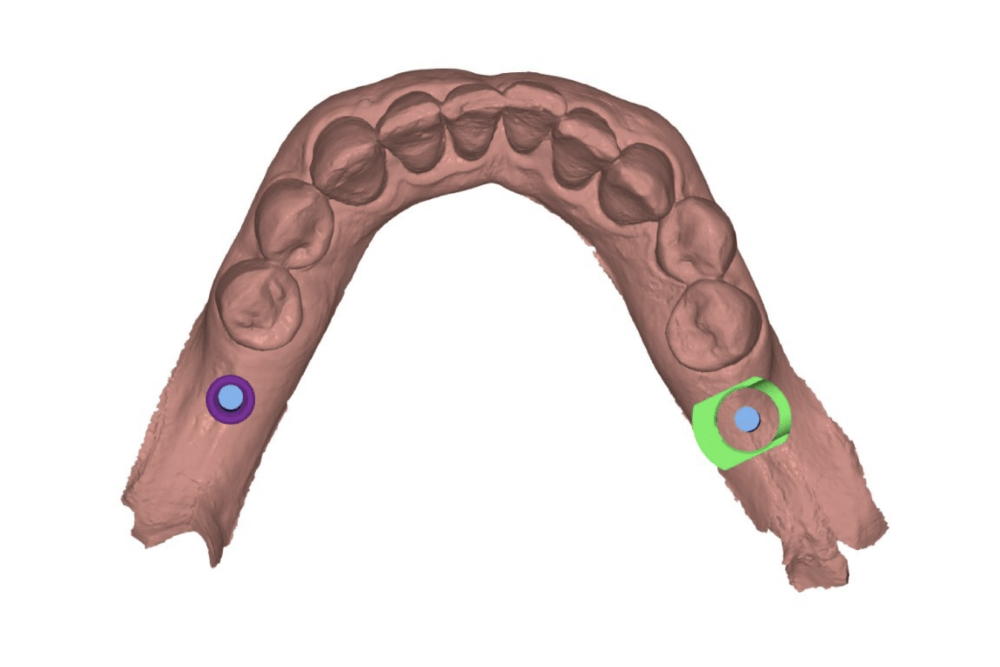
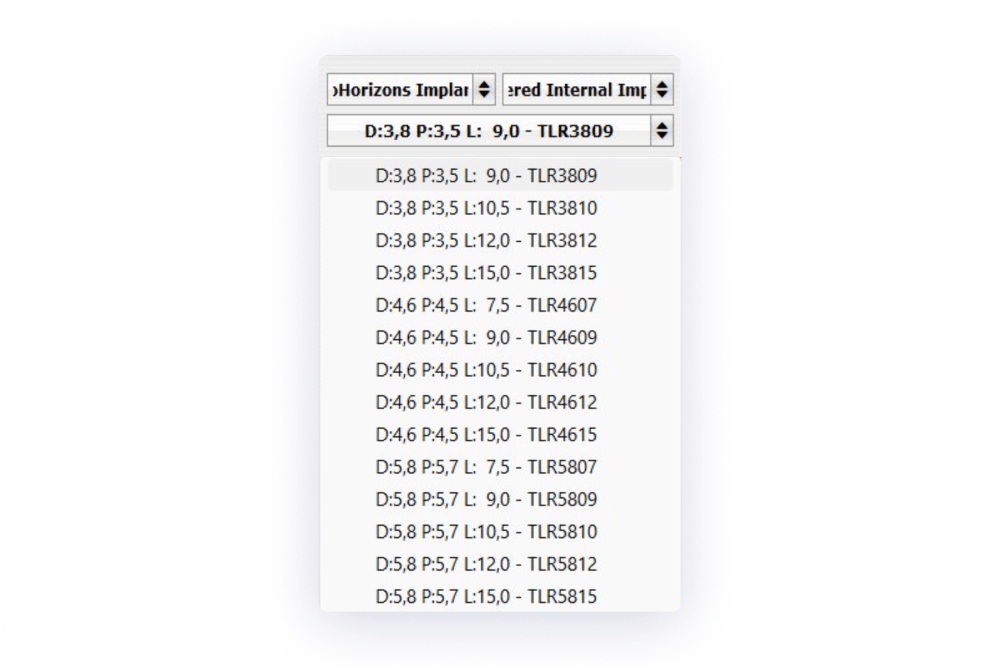
More information in the implant list
In addition to the implant diameter and length, the platform information has been added to the drop-down list for implant selection.
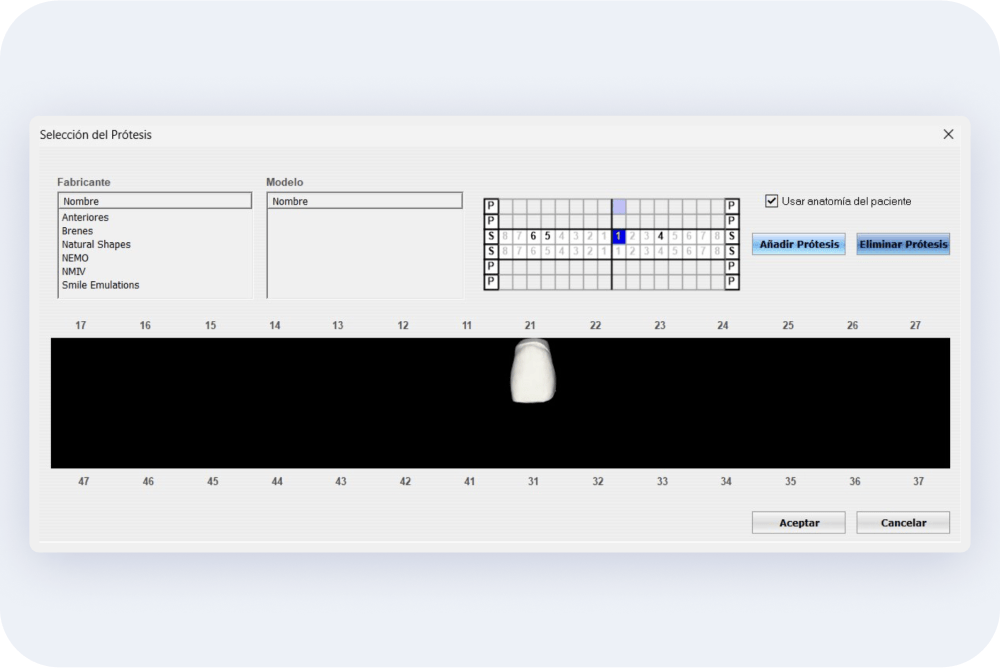
Cloning of the homologous tooth
The option of using the patient’s dental anatomy by cloning the homologous tooth is now implemented. For this purpose it is needed to segment the tooth to be replicated and activate it in the prosthesis selection panel.
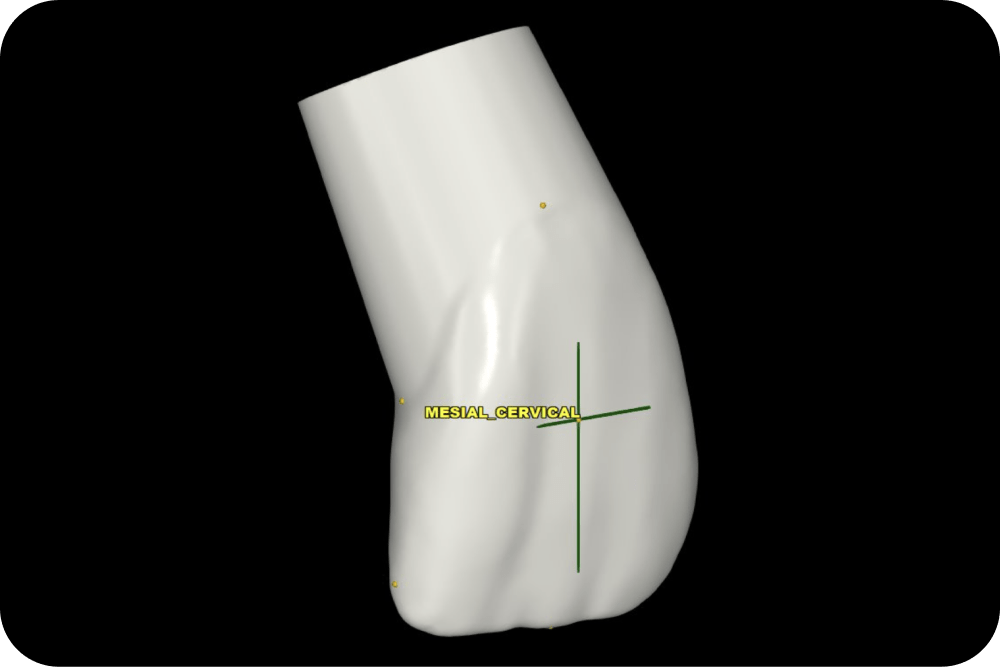
New legends for anatomical landmarks
In Smile Emulations, the reference landmarks and legends have been changed for simpler identification.
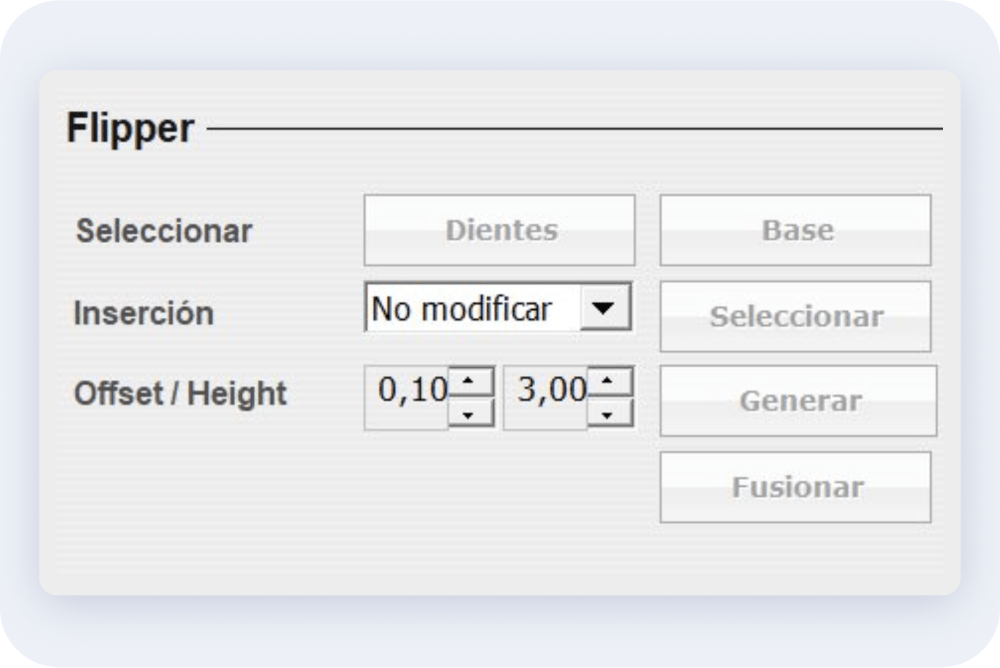
New parameters in the flipper design
More adjustable parameters have been added to improve the Flipper design.
Creation of pre-surgical splint
The possibility of creating a pre-surgical splint has been added.
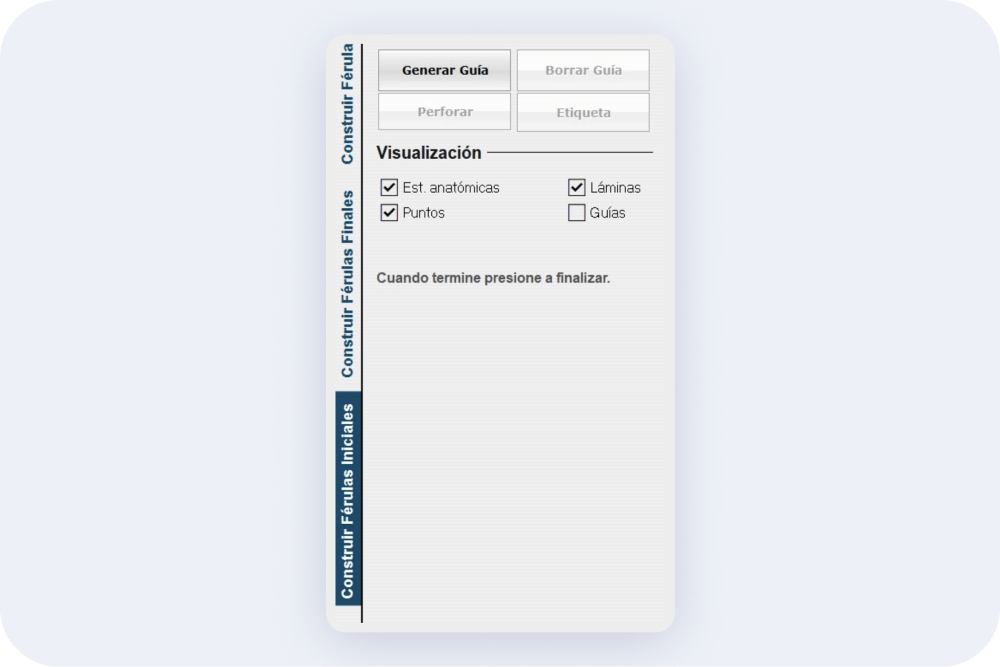
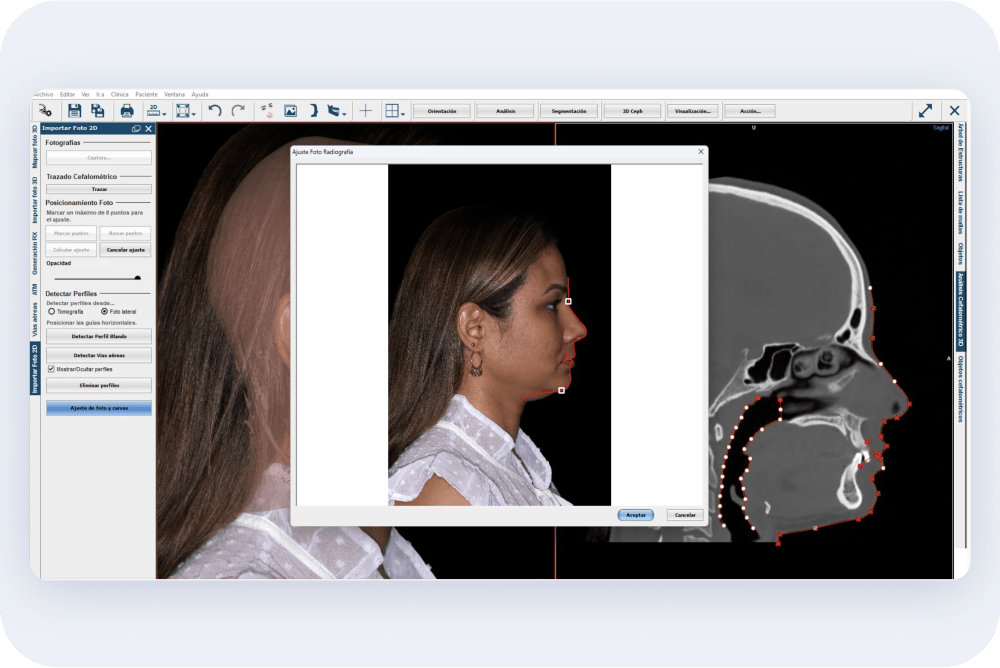
Photo adjustment
The photo and curve fitting option has been integrated into the 2D photo import panel.
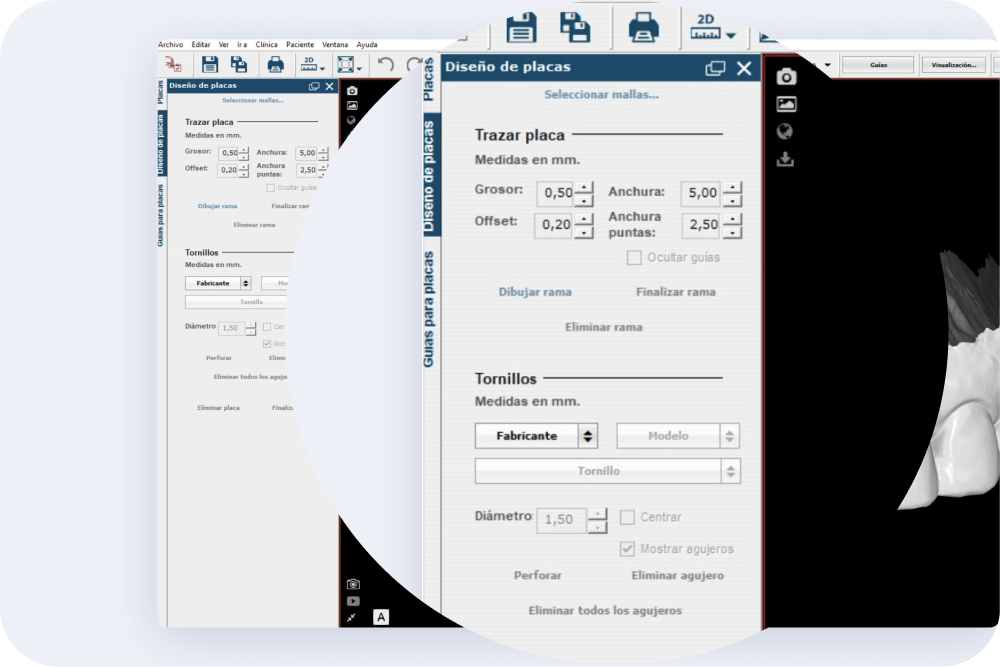
Panel for the design of fixation plates
A new panel for the design of fixation plates has been implemented.